Online Course Launch Checklist: From Registration to First Students
An online course launch is the short stretch when you open enrolment, sell to the people who have been waiting, close the doors and get the first students into lesson one. For a first cohort it takes about five weeks: three weeks of building and testing before enrolment opens, one week of selling, and the first week of teaching, when you fix what the launch exposed.
The work that decides a launch happens before day one, and most of it is one test: you buy your own course as a stranger would, on a phone, all the way to the first lesson.
We'll use one example the whole way. Say you teach comedy writing and you're launching Your First Five Minutes, a six-week cohort course for $249: students write and tighten a five-minute stand-up set, one stage a week, with a live Q&A every Thursday and 30 seats. People join a waitlist by downloading a free joke-writing worksheet. These are example numbers, not benchmarks.
Online course launch strategy: cohort, evergreen or pilot
There are three ways to put a course on sale, and the choice changes the whole plan.
A cohort launch opens enrolment for a week, closes it, and starts everyone on the same day. The closing date is a real deadline, and 30 people moving through the course together give you a month of questions in one place. The cost: everything has to be ready on a date, and between launches the course earns nothing.
An evergreen course is always on sale, and each person starts the day they pay. It earns steadily once an automated funnel feeds it (an automated webinar is one way). There's no natural deadline, though, and you learn about problems one student at a time.
A pilot is a small cohort, say ten people at a lower price, sold before the course is fully recorded. You teach live and record as you go. If you haven't filmed the course yet, start here; the course creation guide covers how to run one.
For a first launch with a waitlist of a few hundred people, we'd run a cohort; a set written one stage a week, with live feedback, suits it anyway. Switch to evergreen once the lessons have survived two cohorts.
Is the waitlist big enough? In the example, 2,000 people visit the worksheet page in the month before launch, 20% join the waitlist and 5% of the waitlist buy.
Example values for the $249 cohort (replace them with yours):
| Step | Example | Result |
|---|---|---|
| Visitors to the worksheet page | 2,000 | |
| Visitor to waitlist | 20% | 400 on the waitlist |
| Waitlist to buyer | 5% | 20 seats |
| Price | $249 | $4,980, about $2.49 per visitor |
| +1 point visitor to waitlist (21%) | 420 on the waitlist, 21 seats, $5,229 | |
| +1 point waitlist to buyer (6%) | 24 seats, $5,976 | |
| Target: all 30 seats ($7,470) | 600 on the waitlist, 3,000 visitors |
At these rates, 30 seats need 600 people on the waitlist. With 400, plan for about 20 students and decide the minimum that makes the cohort worth running (say 8). Write in the sales page FAQ what happens below it: you run it anyway, or refund everyone.
Online course launch plan: five weeks in five phases
T0 is the day enrolment opens, a Monday in the example. Enrolment closes at 23:59 on T+7, and the first lesson and live Q&A are on T+10, a Thursday. The day-by-day version is the checklist at the end.
| When | Phase | What has to be true at the end |
|---|---|---|
| T−21 to T−15 | Decide and build | Date, price, seat cap and minimum fixed. Weeks 1 and 2 of the course recorded. The waitlist page, live for a month already, keeps growing the list. |
| T−14 to T−8 | Sell side | Sales page, offer, payment and emails ready in draft. |
| T−7 to T−1 | Test and warm up | A full test purchase passed. Waitlist told the date and price. Launch emails scheduled. |
| T0 to T+7 | Enrolment week | Open, answer questions, remind once, close on time. |
| T+8 to T+14 | First students | Everyone signed in, lesson one done, the first Q&A held, fixes listed. |
Two items are easy to leave too late. Record the first two weeks before T0 and the rest at least a week before each opens: a cohort that waits for lesson three loses trust fast. And write the buyers' onboarding email before the sales emails, or you'll be writing it during launch week.
An early-bird price pulls sales into the first two days, so you learn early whether the cohort will fill. It also teaches your list to wait for discounts. On a first launch we'd keep one price all week and let the seat cap and closing date be the deadlines. More on offers in the pricing guide.
The test purchase, step by step
Do this at T−7, with a week left to fix what breaks. Use an email address the school has never seen, on your phone, in a private browser window. It takes about 45 minutes.
- Start where a buyer starts: the link in your launch email, not the admin panel.
- Read the sales page on the phone. The price, dates and time zone match the email; the buy button works.
- Pay with a test card in the provider's test mode. Once live keys are on (T−5 in the plan), repeat with a real card and refund it: test mode doesn't prove the live setup.
- After paying, the thank-you page says what happens next, and the confirmation and sign-in emails arrive within minutes. Check the spam folder too.
- Sign in as the new student. The course is there, lesson one opens, week two is still locked, and the Thursday Q&A shows with its date, time and meeting link.
- On the admin side, the order is paid, the payment is recorded and the student is in the cohort's group.
- The test buyer must not get the "last day" email meant for the waitlist.
- Refund the real payment and confirm the course closes for that student.
- Cancel the test orders and mark test leads as spam, so they stay out of your launch numbers.
Write down every surprise. A thank-you page that says "see you soon" with no date invites emails asking when the course starts.
Launch day: what to watch
Send the opening email in your buyers' morning, not yours, and stay at the desk for two hours. Check at 15 minutes, 30, an hour, then a few times that day.
| What you see | What it usually means | What to do |
|---|---|---|
| Clicks on the email, no orders | The page or checkout loses people | Buy again on your phone, right now |
| Orders waiting for payment pile up, few paid | Payment fails, or the provider's notification doesn't reach your school | Check the provider dashboard and its notification (webhook) log |
| Paid orders, but "I can't see the course" replies | Access isn't tied to the payment | Fix the access setting, then write to each buyer |
| Almost no clicks | The email went to spam, or the link is broken | Send a test to a Gmail and an Outlook address; check the link |
| Seat 30 sold | Sold out | Close the offer and tell the waitlist |
Resist the urge to rewrite the sales page on day one because sales are slow. With the closing date a week away, nobody has a reason to hurry yet, so day-one numbers say little. Fix what's broken; leave what's merely untested.
After the first week: what to fix
At T+14 the cohort is a few days in. Look at four things:
- Who hasn't signed in. Send each of them a sign-in link personally, not a broadcast.
- Who opened lesson one but didn't finish it. Watch that lesson again with fresh eyes.
- The questions from the first Q&A. Each repeated question is a missing paragraph in a lesson.
- Refund requests and their reasons.
Then write the launch numbers down: waitlist size, opening-email clicks, buyers by day, revenue, refunds. Ask non-buyers one question ("what stopped you?"). The next launch plan starts from these notes.
Where launches go wrong
The list is too small. If 5% of your waitlist is three people, run a pilot or grow the list for another month.
The price changes mid-launch. Lowering it on day four to rescue slow sales angers the people who paid on day one. Raising it is only fair if you announced it.
Live edits break the page. Edit the live sales page during launch week and a broken button reaches the whole waitlist. Change a copy and swap it in.
The time zone is missing. "Q&A on Thursday at 7 pm" is a different hour for every reader abroad. Name the zone in every email.
How to set this up in Scholaxy
In Scholaxy the page, payment, order, access and emails live in one school, so the test purchase checks one connected path. Below is the setup order with the launch-specific checks; products and payments step by step are in how to sell online courses.
First, the plan. A new school runs free for 30 days, and when a trial or paid period ends unpaid, the school pauses: students see "School temporarily unavailable". If launch week falls near that date, pay in "System settings" → "Plan and billing" first, and check "Up to N active learners" against the cohort size.
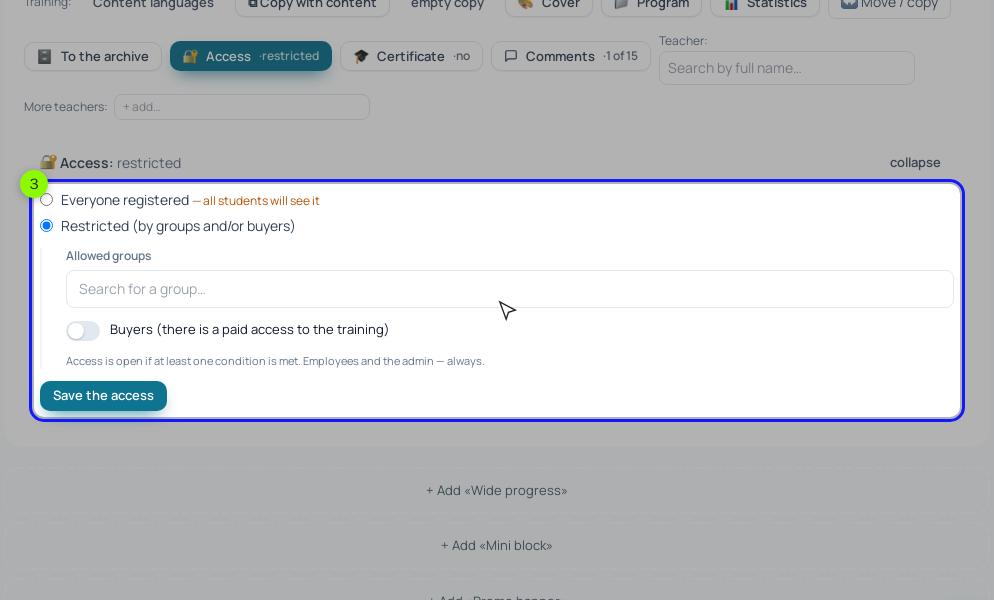
The course and the cohort. Keep the course hidden until it's ready, then use ⋯ → "Show to students". On the training page, "🔐 Access" → "Restricted", the cohort's group in "Allowed groups", and "Buyers" on, then "Save the access".
Create the cohort at /learning/streams with "+ Create a cohort": dates, "Seat limit", "Curator", "Cohort chat (URL)". In its "Learning setup", pick the access group in "Groups (add the student on payment)". For one module a week, use "Schedule" → "More" → "Cohort schedule", "⤓ Pull the lessons" and set "Interval, days". The Thursday Q&A is a schedule event of the "Q&A session" type for the cohort's group, with a meeting link and weekly "Repetition". Reminders reach only students who clicked "+ Book", so say that in the onboarding email.
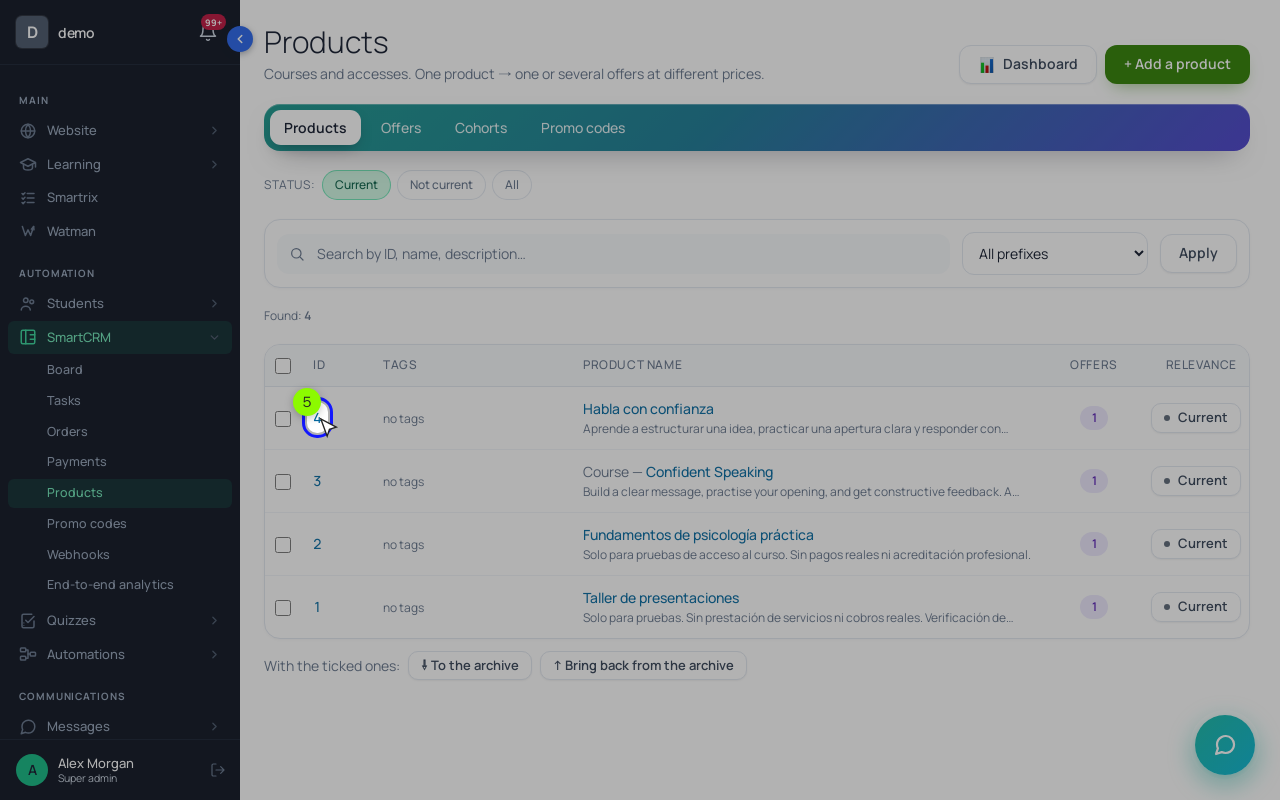
The offer. In "SmartCRM" → "Products", the product has the "Training access" type with the course linked, and the offer is $249. If the course has cohorts, the offer shows a "Cohort" field; pick this cohort and access follows its dates. The cohort card shows enrolled students against its "Seat limit", but the limit doesn't stop the offer from selling: at seat 30, click "Make it not current" on the offer.
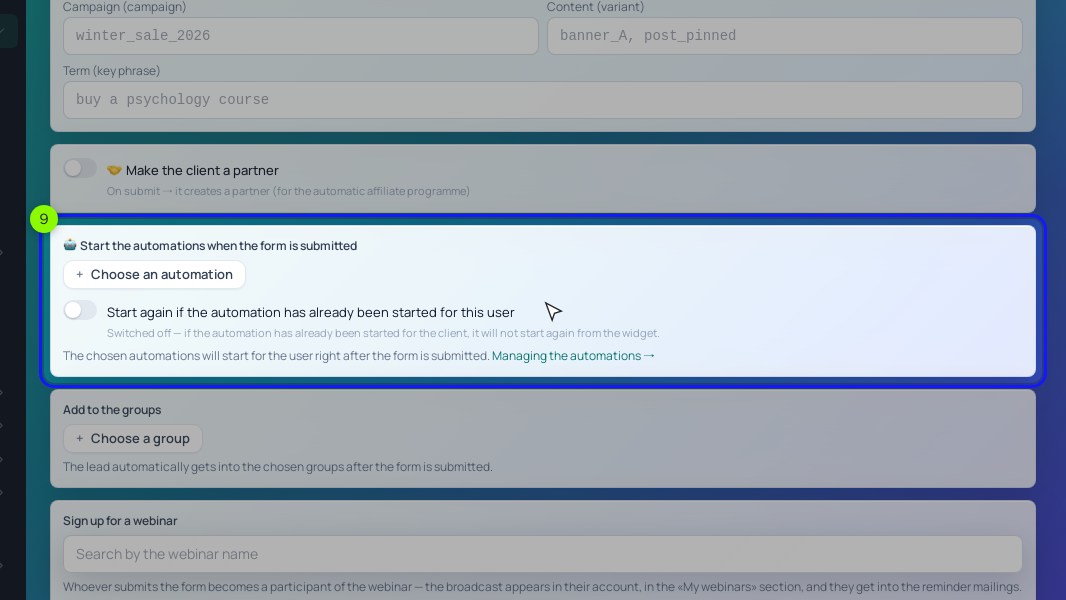
The pages and the form. Build the sales page in "Website" → "Pages" and put the offer in a "Pricing" block under "🛒 The product to sell". The button charges the offer's "Original" price; for a discount, use a promo code with "Valid until". A published page has no separate draft and every edit goes live, so do launch-week changes on a "Duplicate". The waitlist form needs Email set to "Required"; on its "After submitting" tab add a waitlist group and the process that sends the worksheet.
The emails. Launch emails are broadcasts to a dynamic segment: "In a group" → the waitlist group, plus "Belongs to a segment" → "does not belong to" → your buyers segment. Broadcasts need SendPulse or your own SMTP in "Integrations". Schedule them with "Schedule" in advance; times are in the school's time zone. The onboarding email is a process with the "Order paid" event and a "Send an email" block.
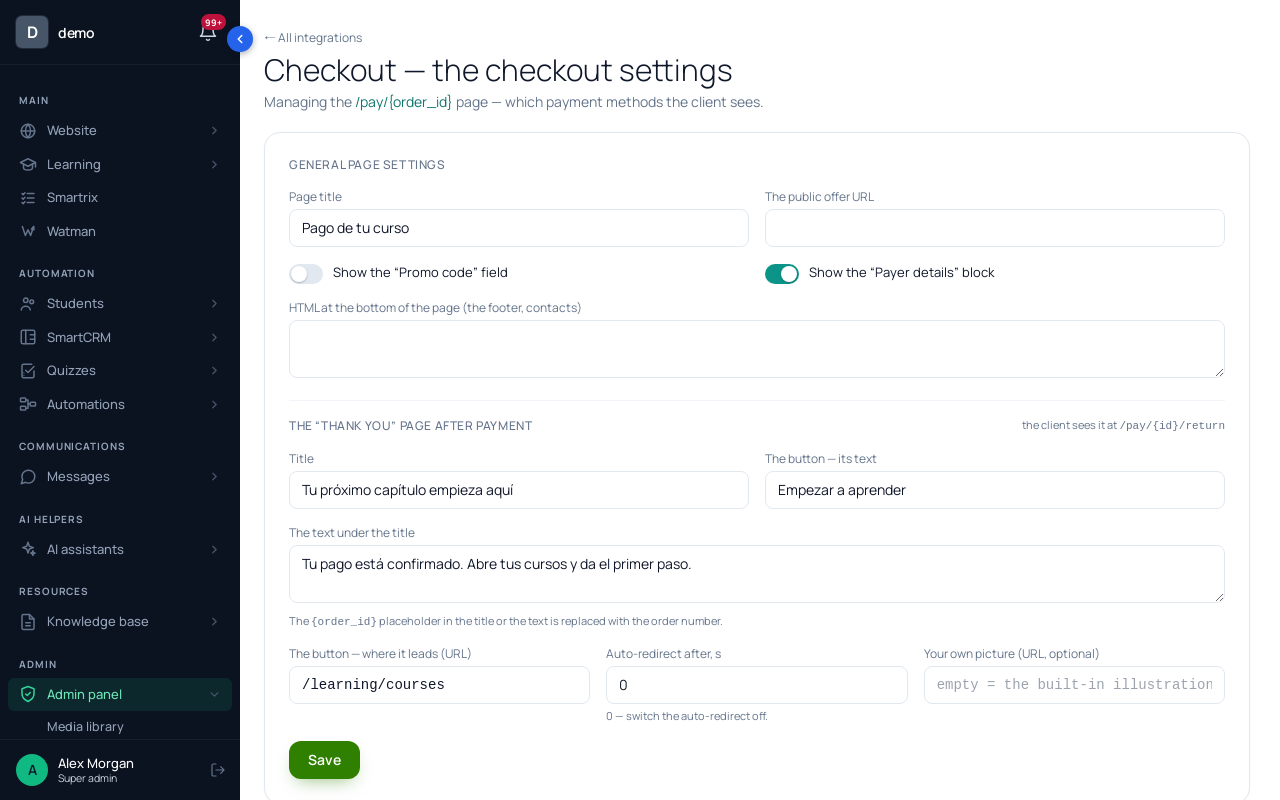
Payment. Connect Stripe with a test key in "Integrations" → Stripe → "Save and check" (or PayPal or Mercado Pago). On /admin/integrations/checkout, add a "+ Payment method", fill in "The public offer URL", publish a page with the slug privacy, and put the course start date in the "Thank you" page text. To go live: "Disconnect", the live key, "Save and check".
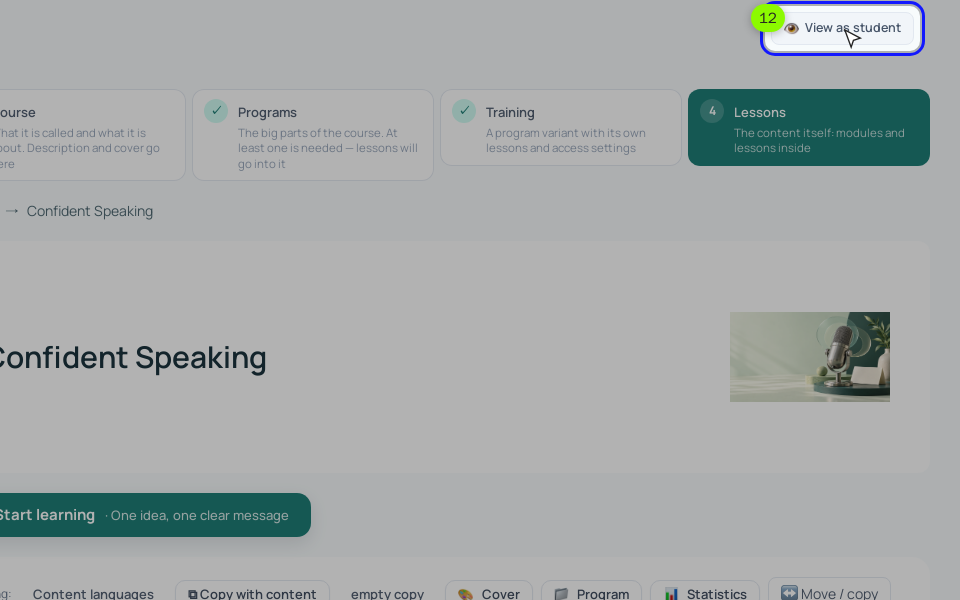
The test journey. "👁 View as student" shows the course as students see it; then do the full test purchase with a fresh email. On the order card, "Course access granted from this order" shows what opened. For the refund, cancel the order with "Cancel →" and the reason "Refunded", and the access closes; a Stripe card refund doesn't update the order by itself.
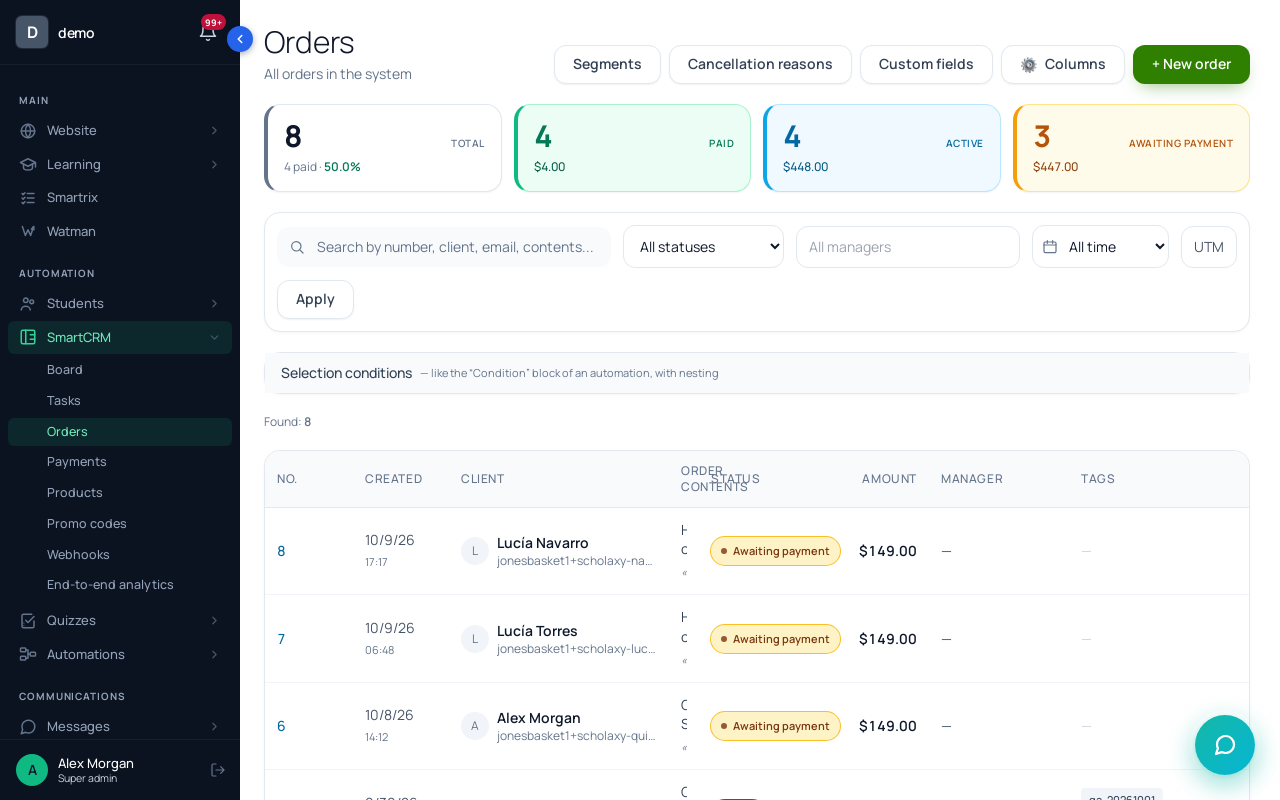
Launch day. Keep "SmartCRM" → "Orders" open: the "paid" and "awaiting payment" tiles are your first signal. A buyer stuck on "Waiting for the payment to be confirmed" means the provider's notification didn't arrive: check the webhook. A process's "Tasks" tab logs emails that failed. After week one, the training's "📊 Statistics" → "By lesson" shows where people stop.
The launch checklist, T−21 to T+14
- Before T−21: the waitlist page and its form (Email required) have been live for a month.
- T−21: fix the dates, price, seat cap and minimum cohort size; check your plan covers launch week.
- T−18: record weeks 1 and 2; plan when the other weeks get recorded.
- T−15: create the cohort, its group and the weekly lesson schedule.
- T−14: product and $249 offer tied to the cohort; course access with "Buyers" on.
- T−12: sales page with dates, time zone, the FAQ and the minimum-size rule.
- T−10: payments in test mode, checkout, thank-you and privacy pages.
- T−9: write the onboarding email, then the launch emails (open, questions, last day).
- T−8: set up the Thursday Q&A event with the meeting link.
- T−7: full test purchase as a new student, on a phone; list every surprise.
- T−5: fix the list; switch payments to live; one real purchase and refund.
- T−3: tell the waitlist the date, price and seat cap.
- T−1: schedule the launch emails to the waitlist segment that excludes buyers.
- T0: send the opening email in the buyers' morning; watch orders for two hours.
- T+3: answer the common questions in one email to non-buyers.
- T+7: last-day email in the morning; close the offer at 23:59 or at seat 30.
- T+8: remind all buyers of the start date and how to book the Q&A.
- T+10: open week 1 and hold the first live Q&A.
- T+12: personal sign-in links to anyone who hasn't signed in.
- T+14: write down the launch numbers and the lesson fixes.