Marketing automation for online schools: what to automate first
Marketing automation for an online school is a set of "when this happens, do that" rules. When someone fills in your lead form, a person gets a call task. When an order is paid, the buyer gets a welcome email with the start date. You write each rule once and the software runs it for every student.
What to automate first is mostly arithmetic. For each task you repeat, multiply how often it happens in a month by the minutes it takes by hand, then weigh the result by what a mistake costs you. For most small schools we would expect three tasks to come out on top: getting a new lead to a human quickly, welcoming every buyer properly, and nudging students who stall. The sales conversation itself stays with a person.
What marketing automation looks like in a course business
Generic marketing automation guides are written for shops and SaaS companies, with carts, trials and lead scores. A course business runs on a shorter list of events, and nearly every useful rule starts from one of them: a new lead, a paid order, a finished lesson, a submitted homework, a finished course, a deal moving to another stage in your CRM.
Your tools then do one of two jobs. A broadcast is one message to many people at the same moment, like "Enrollment for the spring cohort closes Friday". A triggered workflow runs separately for each person, on that person's timeline: Ana paid on Monday, so her welcome goes out Monday; Ben paid on Thursday, so his goes out Thursday. Broadcasts are easy to send by hand. The triggered work is what quietly eats your week, and that is where automation pays.
Check what your platform already does without any rules before you build. Opening course access after payment, for example, is often built in, and a rule that repeats it only adds one more place where things can break.
Score each task: frequency × minutes × cost of a mistake
Say you run an online guitar school. The main course is a 12-week program at $290. About 120 people a month download the free first lesson, around 25 buy, and you have one coordinator who also teaches. Here are six tasks you or the coordinator repeat every month, with honest guesses for the time each takes:
Example numbers for an online guitar school (12-week course at $290, 120 leads and 25 sales a month). Enter your own counts and minutes to rank your list.
| Task done by hand | Times a month | Minutes each | Hours a month | Cost of a mistake |
|---|---|---|---|---|
| Tell the coordinator about a new lead and set a call task | 120 | 3 | 6.0 | High: the lead waits overnight |
| Welcome email after payment with start date and chat link | 25 | 8 | 3.3 | High: a paying student hears nothing |
| Nudge students who stopped after a lesson | 40 | 5 | 3.3 | Medium |
| Follow-up task for trial deals that went quiet | 60 | 3 | 3.0 | Medium |
| Certificate and next-course email at graduation | 15 | 10 | 2.5 | Medium |
| Copy paid orders into the accounting sheet | 25 | 4 | 1.7 | Low |
Total: 1,190 minutes, about 19.8 hours a month.
The cost of a mistake is the column people skip. A forgotten spreadsheet row costs ten minutes at tax time. A forgotten welcome costs a $290 student's first impression, sometimes a refund request. We use three levels (low, medium, high) and let a high cost move a task up one or two places.
With that, the guitar school's order is clear. The lead alert goes first: it is both the biggest time sink and the most expensive to forget. The welcome after payment is second. The spreadsheet comes last, even though it is the easiest of the six to build, and that is the usual trap: people start with what is easy to automate, not with what hurts.
The formula has one blind spot. It only ranks work you already do. Nobody spends six hours a month writing a three-email follow-up for every free-lesson download by hand; they just skip it. For that kind of work, ask what skipping it costs, and read our guide to lead nurturing for course creators before you write the emails.
A marketing automation strategy in four layers
A strategy for a small school does not need a diagram with forty boxes. It needs an order. We build in four layers, and each one feeds the next:
- Don't lose leads. Every form submission reaches a named person with a task and a deadline. This is mostly CRM work, covered step by step in CRM automation for selling courses.
- Don't leave a buyer in silence. Payment triggers a welcome with what happens next: start date, where the lessons are, how to ask a question.
- Keep students moving. If someone has not opened the next lesson in 7 days, a short reminder goes out. A second reminder a week later, then a person looks at it.
- Turn graduates into the next sale. The course ends, the certificate arrives, and a few days later the next course is offered to people who finished, not to everyone.
For the guitar school we would build layers 1 and 2 in the first week. Layer 3 makes sense once about 30 students are active at the same time; below that, the coordinator notices who stalled anyway. Layer 4 needs a second product to sell, so it waits until one exists. If you want the full path from ad click to paid order as one flow, the automated sales funnel guide covers it.
What not to automate
Some work gets worse when a machine does it. We'd keep these with a person:
- Sales calls and replies to people who asked about price, payment plans or "is this course right for me". These are your most valuable leads, and a template answer to a personal question reads like a template.
- The first real answer to a hot lead. Automate the alert and the task, not the reply. An instant "got it, we'll call you today" is fine; the answer to their question comes from a human.
- Anything you have not done by hand at least 10 times. Before ten repetitions you don't know the variations: the student who paid twice, the one who wants a different cohort. Do it manually, write down what changed each time, then automate.
- Refunds, complaints and students who failed a test twice. These need judgment, and an automated message here reads as indifference.
- Feedback on homework. A reminder that homework is due is fine. The feedback itself is the product.
Marketing automation best practices for small schools
Automations in small schools usually break the same way: they send too much, to the wrong people, and nobody notices for a month.
Test every rule on yourself first, with your own email as the student, after a dry run if your tool has one. Then limit entries: one welcome per person per course, unless you have a reason to repeat it. Add a stop condition to every sales sequence, so that someone who buys on day 2 does not get the "last chance" email on day 5.
Respect unsubscribes in every marketing message, including the ones a workflow sends. Service messages (receipts, access, password resets) are a different category and keep going.
Give each rule an owner and a plain name that says the event and the result: "Order paid: welcome", not "Flow 7". Eight rules nobody can name is how the same welcome ends up going out twice. Our guide to designing a workflow before you build it has a template for this.
Look at the numbers a week after launch, then once a month: how many people entered, how many finished, how many errors, and on which step people drop out.
Where this advice does not fit
If you get fewer than about 10 leads a month, the lead alert saves you 30 minutes a month at 3 minutes each. Building and testing it takes an afternoon. Do it by hand for now and revisit when volume grows.
If you run one cohort twice a year, handle launch week with a checklist. Automate only the welcome after payment until you have run two launches the same way.
If your data is messy, rules fail quietly. A lead form without a required email field produces leads the system cannot match to a person, so any rule that should run for them never does. Fix the form before building on it.
Common mistakes: a seven-email sequence built before the welcome email works; a rule that checks the whole database every minute with no filter and emails everyone; two tools sending the same welcome; and a launch announcement sent to "all users", which often includes your own staff.
How to set this up in Scholaxy
In Scholaxy, triggered rules are called processes and live in the Processes section (/automation/processes). A process is a launch trigger, an entry rule that filters who gets in, and a chain of blocks on a canvas: "Send an email", "Delay", "Wait for condition", "Notify the employee", "Add a tag", "Issue a diploma / certificate" and others.
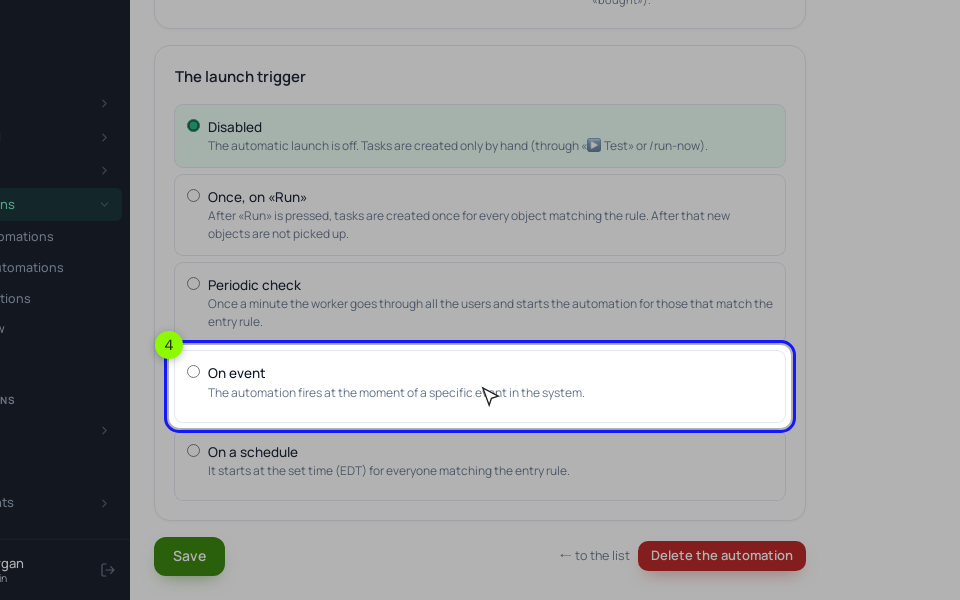
On the process's General tab, "The launch trigger" set to "On event" offers the events from the map above: "Registered", "New lead created", "Order paid", "Lesson completed", "Course completed", "Homework submitted" and CRM deal events. For a lesson or course you can pick a specific one. The same tab has "The limit of entries per client" and "A stop condition by segment", the two settings behind the entry limit and stop condition from the best practices.
Here is how the guitar school's four layers map onto it.
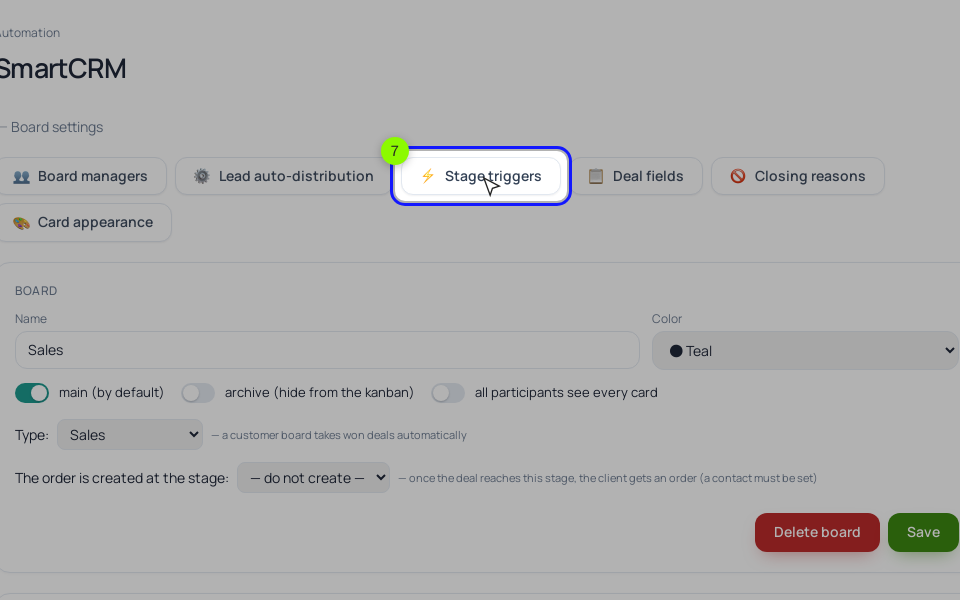
Layer 1, leads. In the lead form's "After submitting" tab, pick a process under "Start the processes when the form is submitted". That process has one "Notify the employee" block for the coordinator, with {user_link} in the text instead of the lead's email or phone (the notification also goes to Telegram as written). Starting from the form is more reliable than the "New lead created" event, which fires only when a lead creates a new person card. Make the Email field required: after-submit actions run only for leads with an email. To turn leads into deals, choose a "Board" and an "Initial stage" in the page's "Auto-conversion of leads into deals". In the board settings, "Stage triggers" create a task, assign a manager or a tag when a deal enters a stage or goes stale, and "Auto-assignment" (off by default) gives each new deal to the manager who has waited longest.
Layer 2, buyers. Course access opens by itself when an order turns "Paid", so the process adds only what is missing: "Order paid" → "Send an email" with the start date and chat link. For the accounting sheet, an integration route on "Order paid" with the google_sheets adapter writes a row for every online payment.
Layer 3, stalled students. "Wait for condition" on the next lesson, with a timeout of 7 days; the timeout output goes to "Send an email" with the reminder.
Layer 4, graduates. On the training page, "🎓 Certificate" with a template and an anchor lesson issues the certificate when the student submits that lesson's assignment. The "Course completed" event fires at the same moment, so a process on it can run "Delay" of 3 days → "Send an email" with the next course. No anchor lesson, no event.
One-off announcements are broadcasts, in Messages → Campaigns. Broadcast emails go out only through SendPulse or your own SMTP, so connect one first under Integrations. The "Run a broadcast" block inside a process does not respect unsubscribes yet, so for marketing emails inside a process use "Send an email", which skips people who unsubscribed.
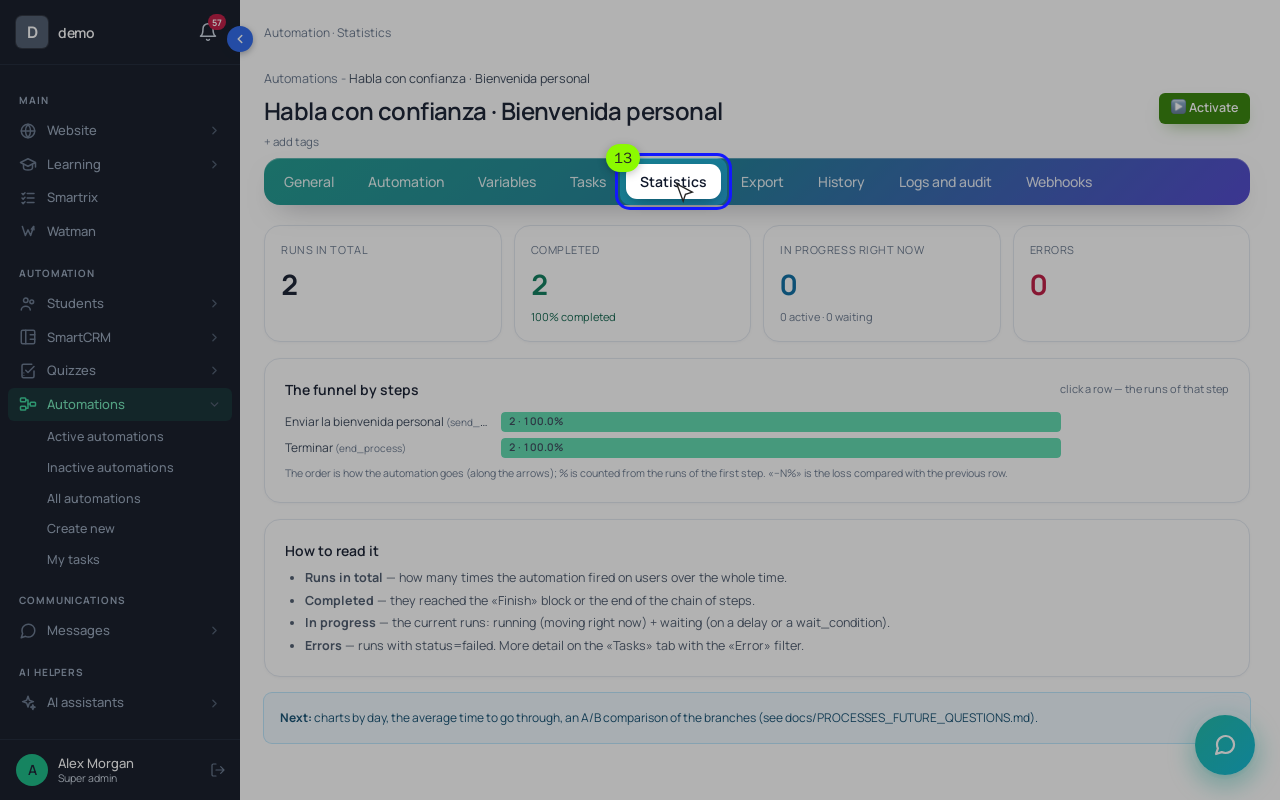
Before activating, run "🧪 Simulate" on the Process tab (nothing is sent), then "▶ Test" with your own email (this one really sends). After "▶ Activate", the Statistics tab shows "Runs in total", "Completed", "Errors" and "The funnel by steps". If you need another service in the chain, a process's Webhooks tab gives an address that Zapier or Make can call, and integration routes send school events out to them.
What to set up first
- List your repeated tasks with times per month and minutes each, and mark the cost of a mistake.
- Make Email required in every lead form.
- Create a process with "Notify the employee" and pick it in the form's "Start the processes when the form is submitted".
- Point the form to a CRM board and stage; add a stage trigger that creates a follow-up task when a deal goes stale.
- Create an "Order paid" process with one "Send an email" welcome. Skip any access step: access opens by itself.
- Run "Simulate", then "Test" on your own email, then activate.
- A week later, open Statistics and check errors and where people stop.
- Only then add the stalled-student reminder, and the graduation offer once you have a second course.
Do I need a separate marketing automation tool if my course platform has workflows?
Usually not at the start. With lessons, payments and emails in one system, a rule sees that a student finished lesson 4 without a sync in between. A separate tool makes sense when you already run email marketing elsewhere; connect the two through webhooks.
How many automations should a small school run?
Fewer than you think. The guitar school example works well with four or five rules. Each new rule is something to test, name and check monthly, so add one only when the scoring above puts it near the top.