CRM Automation for Course Sales: Stages, Owners and Follow-up Tasks
CRM automation for course sales means the CRM does the paperwork of each sale and your team does the talking. A website request becomes a deal in the first stage, gets an owner and a task with a due date. Moving the deal to the next stage sets up the next step, and when the student pays, the deal closes as won by itself.
For a small school, four rules cover most of it: assign an owner the moment a request arrives, create a task with a due date at every stage where someone has to act, flag deals that sit too long, and create the order at the stage where you send the payment link. The call itself and the price conversation stay with a person.
What CRM automation should do in a course sale
Say you sell a $390 bookkeeping course for freelancers. Your landing page brings in about 120 requests a month, and two people answer them (call them Sam and Priya). That is roughly six new requests per working day, three each.
Without automation, someone decides who takes each request, remembers to call back on Thursday, builds an invoice, checks the payment and drags the card to "Won". At five minutes of admin per deal, 120 deals is ten hours a month. Worse, the misses are silent: a request nobody picked up does not complain.
Here is the path a deal takes when the rules are in place:
Steps 1–3 and 6–8 need no human. In steps 4 and 5 a person does the work, and automation makes sure that work has a name and a date. Still deciding whether you need a CRM? Start with what a CRM does for an online school.
Map the stages before you automate anything
Every rule hangs on a stage, so the stage list comes first. A stage is worth having only if something different happens there: a different person acts, or a different task is due. "Interested", "Very interested" and "Warm" are moods, not stages.
For the bookkeeping course we'd use four working stages plus the two closed ones:
| Stage | The deal is here when | Exit when |
|---|---|---|
| New request | The form was submitted | Someone has spoken to the person |
| Talked, thinking | The call happened, no decision yet | They ask for the payment link, or say no |
| Payment link sent | They have the link | The order is paid |
| Won | The order is paid | (closed) |
| Lost | They said no or went silent | (closed, with a reason) |
Four is enough for a $390 course sold by phone or chat. A $3,000 mentoring program with an interview might need one more. We'd stop at six: each extra stage is one more card to drag, and people stop dragging. You'll see it as cards piling up in the second column.
Two settings keep the list honest. Make the closing reason mandatory for Lost, so in a month you can see whether people leave over price or timing. And if a stage needs data (the student's level, the start date), make that field required from that stage on. Only ask for what the manager already knows at that point, or they'll type anything to get past it.
The rules worth automating, stage by stage
A rule has two parts. "When" is on entering a stage, or after the deal has sat there too long. "What" is one action: create a task, assign an owner, add a tag, send a message, move the deal or start a longer workflow.
New request: owner first, then a deadline
Set the owner before anything else, because every later task goes to the owner. Hand requests out in rotation to whoever is working: if Sam works mornings and Priya afternoons, an evening request waits for the next shift instead of landing on someone asleep.
Then give the first contact a deadline. We'd let the intake stage go "stale" after 2 hours and create a task "Call now" when it does. Requests handled in time never see that task.
Talked, thinking: a follow-up date, not a promise
The usual miss here is "I'll get back to you on Thursday" with nothing written down. On entering, create a task "Follow up" due in 2 days. Still here after 5 days? Tag the deal as cold so it shows up in its own list.
Payment link sent: the order and one reminder
Create the order when the deal enters this stage; the manager sends the link. After 3 days here, create a task "Ask what's stopping them". A person asking beats a third automatic email (more on automated follow-up emails and when they help).
Won and Lost: let payment do the closing
A paid order should move the deal to Won by itself. Lost stays manual, with a reason.
Plan your own version below: rename the stages, pick an entry action and a "stalled after" limit for each. The defaults are the example above, not a rule for every school.
Example plan for a $390 course, 120 requests a month, two managers:
| Stage | On entering | Stalled after | When stalled |
|---|---|---|---|
| New request | Assign owner | 2 hours | Create task "Call now" |
| Talked, thinking | Create task "Follow up", due in 2 days | 5 days | Add tag "cold" |
| Payment link sent | Create the order | 3 days | Create task "Ask what's stopping them" |
| Won | Nothing (paid order moves the deal here) | None | None |
| Lost | Nothing (closing reason required) | None | None |
What to keep manual
The first real message to a new lead should come from a person. An automatic "Thanks, we'll be in touch" is fine as a confirmation; one that pretends to be Sam reads like a robot, and people answer it like one. Anything about price or a payment plan comes from the deal's owner too. A rule can still create the task "Write to them about the payment plan", so it happens.
Discounts stay manual. If a rule offers 20% to every deal that stalls, everyone learns to stall. Lead scoring is a separate layer that helps decide who to call first (lead scoring for course sales); it doesn't replace these rules.
Where CRM automation goes wrong
Tasks nobody closes are the first sign. If one stage produces most of the overdue tasks after a week, its "stalled after" limit is too short or the task is pointless.
Owner rules without shifts are the next trap. Rotation that ignores working hours hands evening requests to someone off duty. The reverse happens too: shift tracking is on, nobody entered a shift, and every deal waits in a queue.
Messages can fire twice. A deal dragged back and forth between two stages may re-trigger an "on entering" email, so move a test deal back and forth before you trust a rule.
And automation can hide a sales problem. If deals stall at "Payment link sent", more reminders won't fix the price or a checkout that breaks on phones. Read the closing reasons before you add rules.
What to require from CRM automation software
If you are choosing a sales automation CRM for a course business, check these before you sign up. Missing any one of them means a spreadsheet next to the CRM.
- Website forms create deals in a stage you choose, with the contact attached.
- Owners are assigned by rotation that respects shifts, with a log of each assignment.
- Rules fire on entering a stage and after a deal goes stale (minutes, hours or days).
- Tasks have an owner and a due date, and today's and overdue tasks sit in one list.
- Fields can be required per stage; closing as lost asks for a reason.
- A paid order closes the deal as won, and a stage rule can start a longer workflow.
- Payment opens the course in the same system, or through an integration you trust. A paid order that doesn't open the course is a support ticket on day one.
How to set this up in Scholaxy
The walk-through below follows the bookkeeping example. The video shows the same screens.
1. Trim the board and connect the form
Open "SmartCRM" → "Board". A new school already has a "Sales" board with stages from "New request" to "Won" and "Lost". Click the gear, then "Open" next to "Sales": rename stages, add one with "+ Stage" or delete one (only empty stages can be deleted).
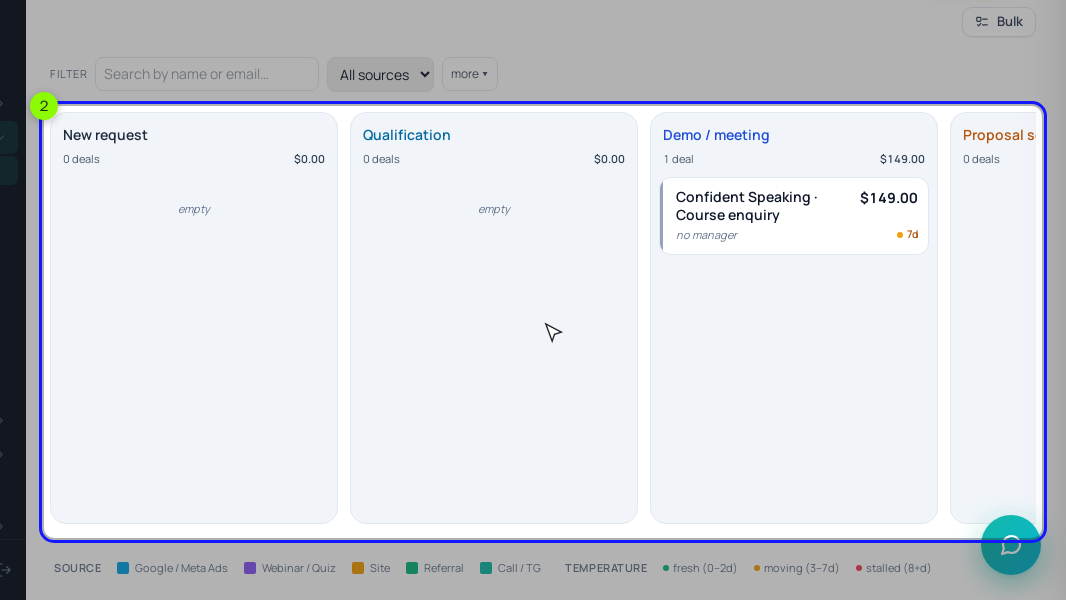
In the same settings, "📋 Deal fields" can make a field required from a chosen stage, and "🚫 Closing reasons" holds the list for lost deals.
Then connect the landing page: in its settings, "Classic" tab, choose a "Board" and an "Initial stage" under "Auto-conversion of leads into deals". Make Email required in the form. Without an email there is no person card, so the deal has no contact and can't get an order later.
2. Turn on auto-assignment
On the "Auto-assignment" tab, set the "Entry point" to the intake stage, "New request". Add a channel whose marker "stage (name)" equals that stage's name (it catches every new deal), connect Sam and Priya under "Managers in the distribution" and turn on "Auto-distribution by channels". Each deal goes to the connected manager who has waited longest.
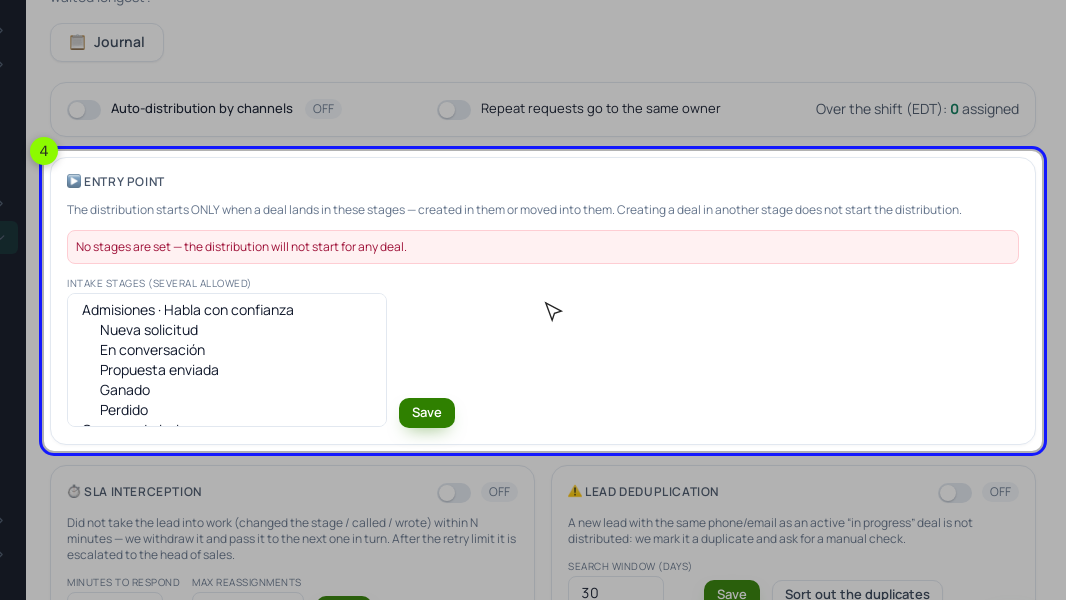
"Take the schedule into account when distributing" is on by default. Enter shifts on "Shift schedule" or turn it off: with tracking on and no shifts, deals wait in a buffer. The "Journal" explains every assignment.
3. Add stage triggers
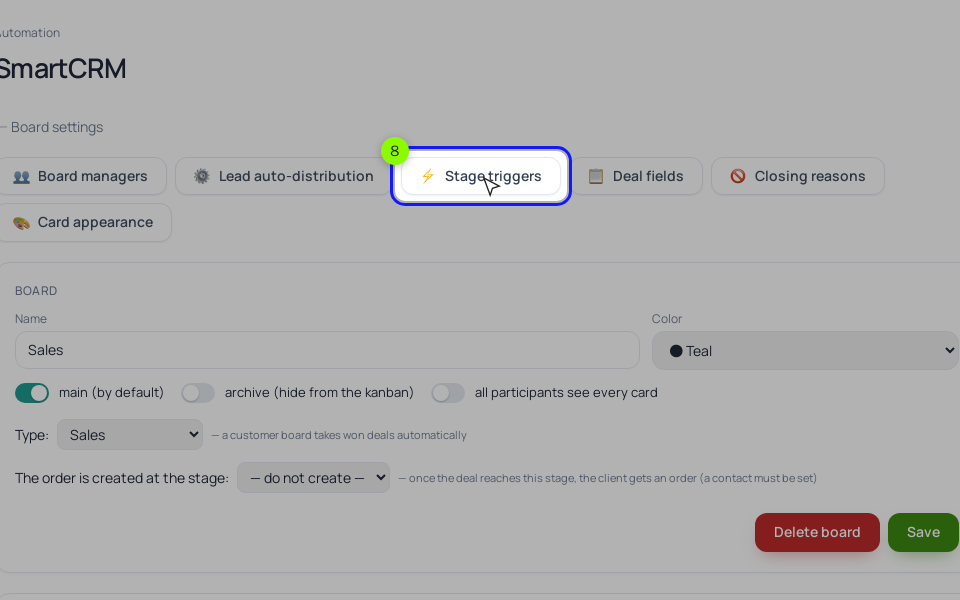
In the board settings, click "⚡ Stage triggers", then "+ Trigger". Pick the "Source stage", choose "On entering the stage" or "On going stale" (with "After" and a unit: minutes, hours or days), and pick the action: "Create a task", "Move to another stage", "Assign a manager", "Assign a colour tag", "Send an email to the client", "Send a chat message" or "Start a process (scenario)". A "Condition" is optional.
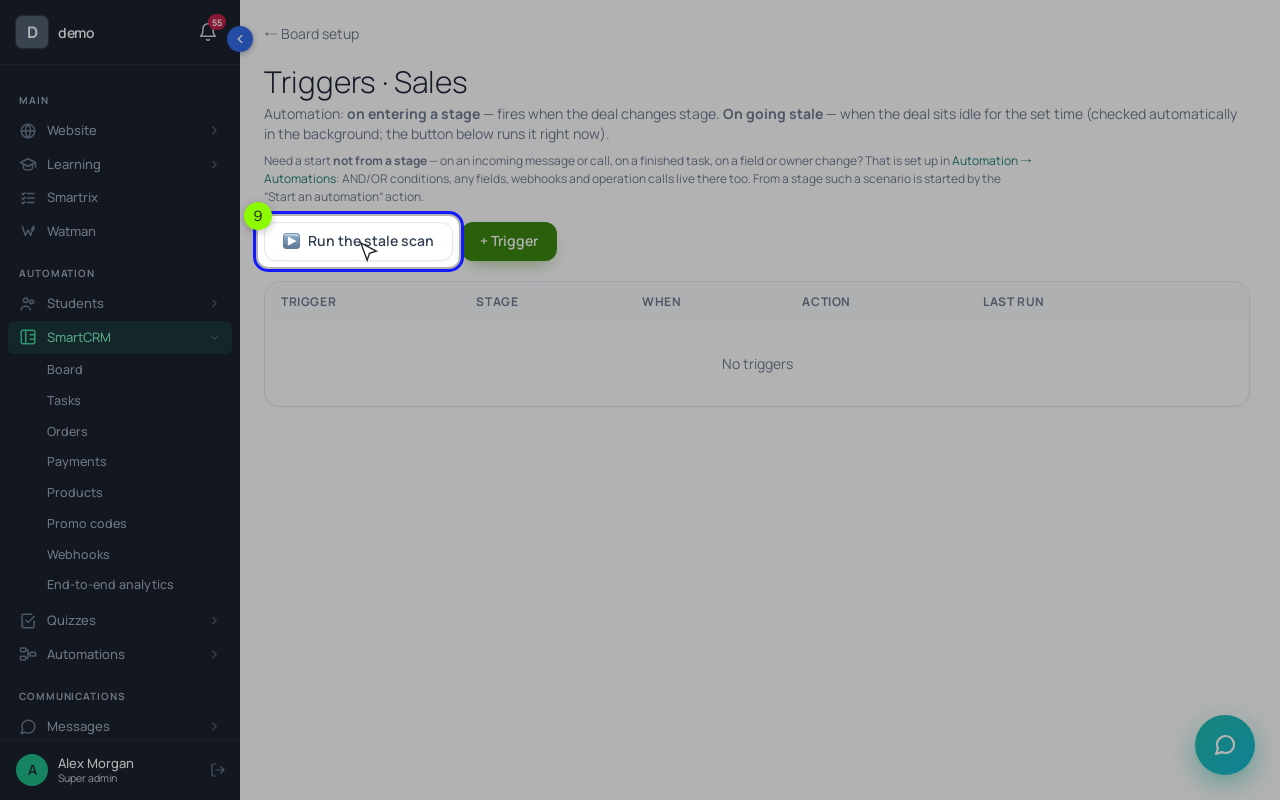
Stale rules are checked in the background and fire once per deal. A task from a trigger goes to the deal's owner, due in the days you set in "Due in (days)". That's why auto-assignment comes first.
"On entering the stage" rules run for every new deal, including the ones a website form puts straight into "New request". For the intake stage we still prefer "On going stale" (2 hours, "Create a task"): an entry rule would give every request a task, even the ones a manager already called, while the stale rule only fires when nobody reacted in time. On "Talked, thinking" an entry rule fits, because reaching that stage is what calls for the next step.
4. Work from tasks
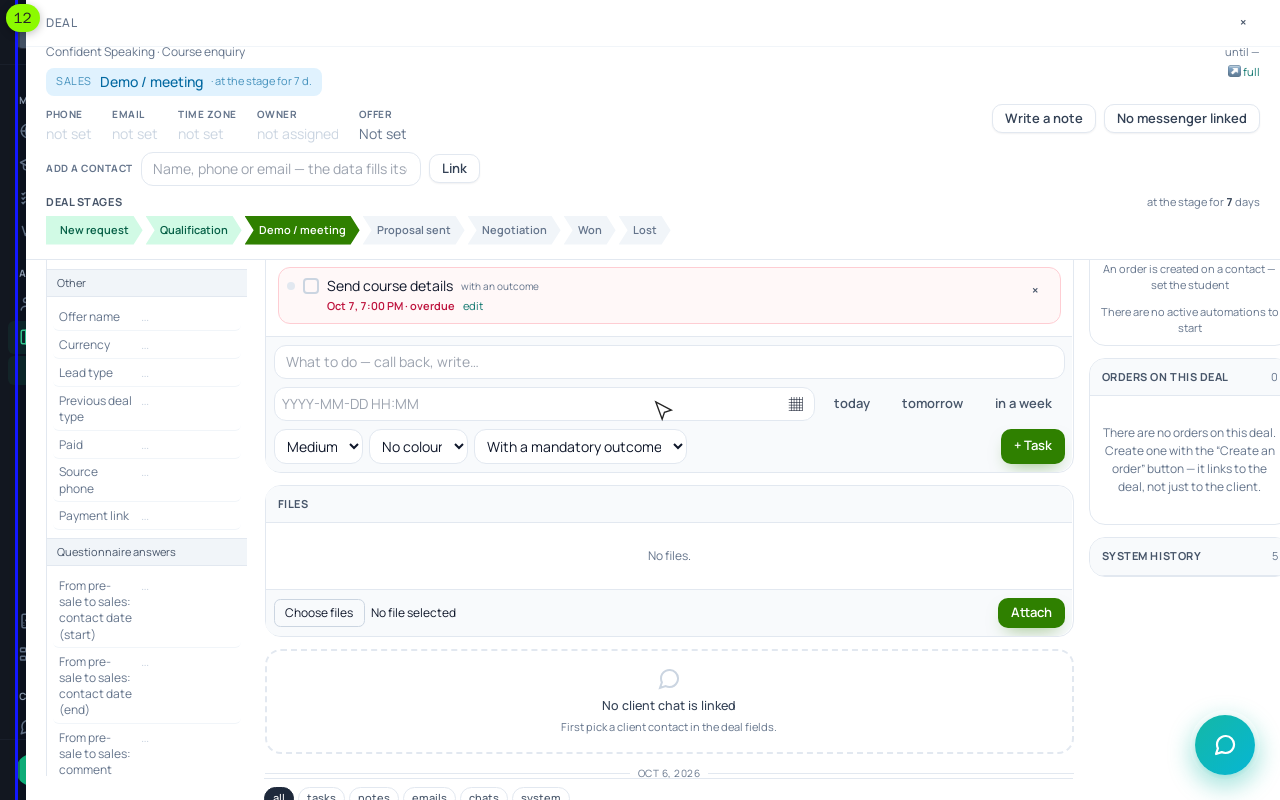
Click a deal's name on the board to open it in a side panel. In "Deal tasks", type what to do and set a date or click "today", "tomorrow" or "in a week". A task is "With a mandatory outcome" by default: to close it, the manager picks an outcome and writes what happened.
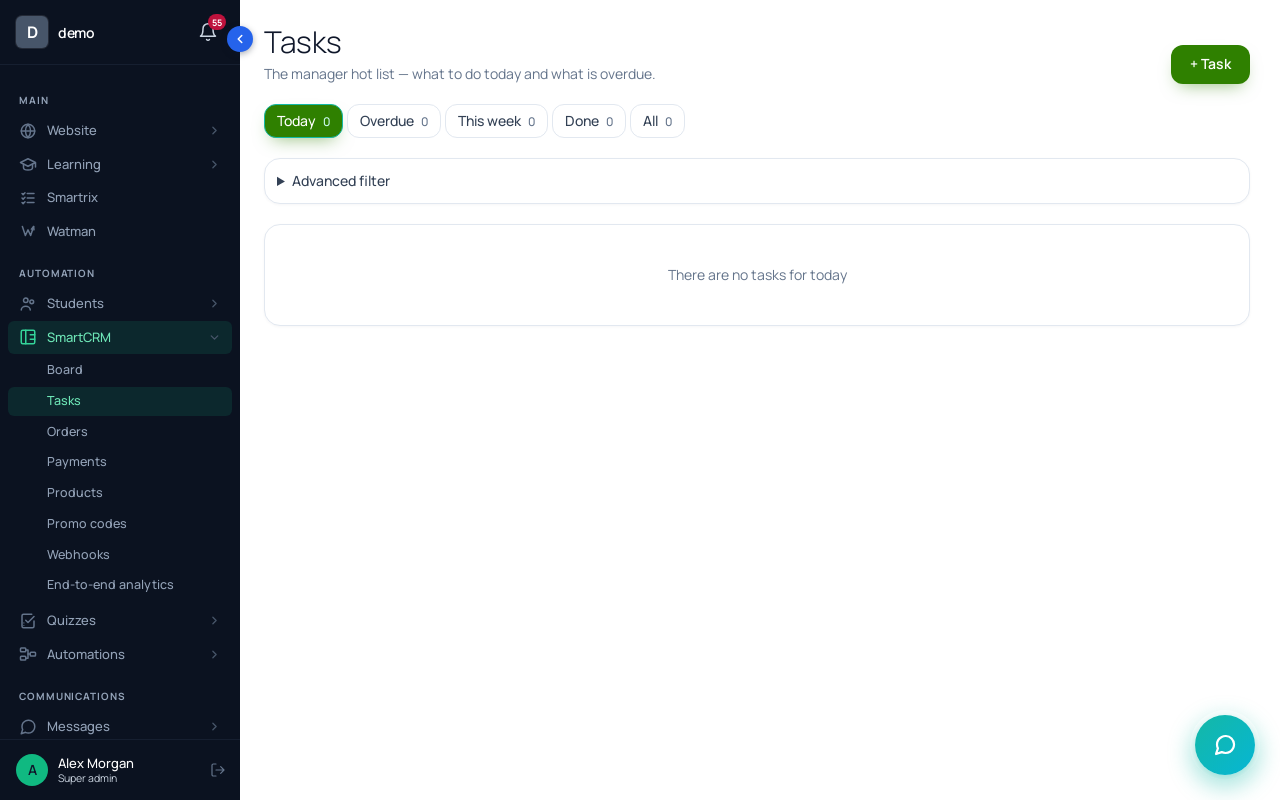
"SmartCRM" → "Tasks" collects everyone's tasks. Starting the day from "Today" and "Overdue" is the whole routine.
5. Use a process when one action is not enough
A stage trigger does one thing. For a chain (a task, an email two days later, a note to a colleague), create a process in "Processes" with the object type "By CRM deals". It starts "On event" with deal events such as "Deal changed stage", or from a stage trigger with "Start a process (scenario)", which accepts only processes "By CRM deals" and needs a deal with a contact. Deal operations include "Set a task", "Deal: assign the owner" and "Deal: add a tag". To alert a colleague, use "Notify the employee" with {user_link} in the text, never the student's email or phone: the text goes to Telegram as is.
For emails to students we'd pick the process "Send an email" block over the trigger's "Send an email to the client": the block skips people who unsubscribed and logs it. More on processes in the automated funnel guide.
6. Let payment close the deal
In the board settings, set "The order is created at the stage:" to "Payment link sent". A deal with a contact that reaches it gets an order. In the current version the order carries the deal's amount but no offer, so add the course offer in "Order items", then use "📋 Copy the link" or "✉️ Send to …". When the order turns "Paid", online or after you record a bank transfer that covers the amount, the deal moves to "Won" by itself.
Setup order for your first week
Do these in order. Each step depends on the one before it.
- Cut the board to four working stages plus Won and Lost.
- Add 4–6 closing reasons.
- Make Email required and connect the form to the intake stage.
- Turn on auto-assignment; enter shifts or switch schedule tracking off.
- Intake stage: stale after 2 hours, create a task "Call now".
- "Talked, thinking": on entering, task "Follow up" due in 2 days.
- Set the order stage and push one test request through to a test payment.
- After a week, read the overdue tasks and closing reasons; change one rule at a time.
Does a school with a checkout page need a CRM at all?
If every student buys on the checkout page without talking to anyone, a CRM adds little. It pays off when people ask questions before buying: pricier courses, cohorts with an interview, corporate training. You can run both: checkout for a $49 mini-course, the CRM for the $390 one.
How do I know the automation is working?
After two weeks, count the "Call now" tasks (each one is a request that waited over 2 hours) and the overdue tasks, and see where deals sit longest. If "Call now" tasks drop week to week, the team is answering faster.