How to Design a Marketing Automation Workflow with Conditions and Delays
A marketing automation workflow is a set of rules that a system follows for each person separately: what starts it, who is allowed in, which messages go out after which pauses, what gets checked on the way, and what makes it stop. Designing one means deciding those rules on paper before you put a single block on a canvas.
The short version: one trigger, an entry filter, delays counted from each person's own start, a condition only where the answer changes the next message, a wait with a timeout wherever you wait for the person to act, a stop rule for the goal (usually "bought"), and one run per person. Then test every path, the slow ones included. Still choosing which workflow to build? Read what to automate first in an online school and come back with one candidate.
The parts of a marketing automation workflow
Every workflow, whatever tool draws it, answers the same nine questions:
- Trigger: what starts a run? A form, a payment, a finished lesson, a date.
- Entry rule: who must not start even when the trigger fires? Buyers, staff, people in a similar flow.
- Steps: an email, a tag, course access, a note to a colleague.
- Delays: pauses counted from the moment this person reached the step.
- Conditions: a yes-or-no question asked once, when the run gets there.
- Waits with a timeout: a question asked again and again until it is yes or time runs out.
- Exits: where every output leads, including "the email failed" and "time ran out".
- Stop condition: the reason to leave from any step, usually the goal.
- Limit per client: how many times one person may go through.
Conditions and waits are easy to confuse: a condition looks once, a wait keeps looking.
The example: a free tax lesson that leads to a $149 course
Say you teach freelancers to prepare their own tax return. The course, "Freelancer Tax Prep", is self-paced and costs $149. The free lesson is "Estimate your quarterly tax payment in 20 minutes", with one assignment at the end: type in your estimate. About 240 people sign up for it a month, 8 a day. These numbers are made up for the arithmetic in this article; they are not industry averages.
Before building anything, write the spec. Its first row is the workflow's name, so nobody has to guess what "Flow 7" does:
| Question | Answer for the tax course |
|---|---|
| Name | Free tax lesson: course offer |
| Trigger | The free-lesson form is submitted |
| Who must not start | People who already bought the course |
| Goal and stop condition | Bought "Freelancer Tax Prep" |
| Limit per person | Once |
| Most emails one person gets | 4 |
| Longest path | About 12 days |
In words: on day 0 the person gets the free lesson and email 1. Then a wait: has she answered the assignment? If yes, a one-day pause, the offer, two more days, and a check on whether she clicked. If she has not finished after 3 days, a reminder and a second wait of 4 days. People who skip a 20-minute free lesson after two emails get a tag and leave; we would not pitch a $149 course to them, and your newsletter can still reach them.
The four emails (day 0 is the day of the form). Every email stops when the person buys.
| Day | Who gets it | |
|---|---|---|
| 0 | 1: "Your 20-minute tax lesson is open" | Everyone who sent the form |
| 2 to 10 | 3: the $149 offer | People who finished the lesson |
| 3 | 2: the reminder | People who have not finished after 3 days |
| 4 to 12 | 4: "Questions people ask before buying" | People who clicked after the offer |
Delays: count from the person, not from the calendar
A relative delay ("1 day after the previous step") gives every person their own clock. Ana finishes the lesson on Monday and gets the offer on Tuesday; Ben finishes on Thursday and gets it on Friday.
Many tools let you snap a delay to a time of day: "1 day, then wait until a weekday at 9:00". We use it for the offer only. The cost shows up on Fridays: someone who finishes at 10:00 on Friday reaches the end of the delay at 10:00 on Saturday, then waits until Monday at 9:00, 71 hours after finishing instead of 24. Fine for an offer; wrong for email 1, which the person asked for a minute ago.
Some messages belong to the calendar. "Your quarterly payment is due on Friday" means the same Friday for everyone, so it goes out as a broadcast to a segment or through a delay that waits for a fixed date. Inside a per-person workflow it would go out on 240 different days.
Conditions and waits: check once, or keep checking
Use a condition when the answer exists at that moment and decides the next message: "Did she click anything in the last 2 days?" goes left or right.
Use a wait with a timeout when you are waiting for the person to finish a lesson, pay or reply. The wait leaves through its main output as soon as the answer is yes, and through the timeout output when time is up. A fast finisher in the tax example gets the offer on day 2; with a plain condition on day 3 she would get it on day 4, two days after she was ready.
Four rules we follow when drawing branches:
- One question per condition. "Finished and clicked and opened" hides three answers, and later you cannot tell which part failed.
- Every output leads somewhere on purpose, including "email failed" and "timeout". An output connected to nothing usually ends the run without a word.
- The timeout is how long you would wait by hand before nudging: 3 days for a 20-minute lesson, more like 10 for a course module.
- After one timeout, one reminder; after the second, let go. We expect a third chase to cost more unsubscribes than it brings finishes.
Count your paths before you build. Two waits and one condition give the tax workflow five paths: fast finisher who clicks, fast finisher who doesn't, the same two for slow finishers, and the person who never finishes. Buying at any point is a sixth behavior. Each path is a test, and each new condition adds at least one.
Stop conditions and limits per client
The stop condition is the goal. When someone buys "Freelancer Tax Prep" during a 2-day delay, the run should end before the "questions before buying" email reaches a person who has paid. A good tool checks it while people wait, not only at the next step.
The limit per client answers "what if the same person triggers this twice?". For a lead magnet workflow it is 1: someone who downloads the lesson again next spring should not get the offer sequence twice. A welcome after every order is the opposite case.
One person can be in several workflows at once: the tax lead waiting for the offer may also be in your newsletter and a webinar flow, and three sensible workflows can send her five emails in a week. Give sales workflows the same stop condition, and list the workflows that reach the same person before adding one.
Test every path before real people do
A dry run that pretends every wait succeeds checks only the wiring; it never walks a timeout branch. The real test is a copy with days turned into minutes and one test address per path:
| Path | What the test person does | What should happen |
|---|---|---|
| Fast, clicks | Finishes the lesson, clicks in the offer | Emails 1, 3 and 4 |
| Fast, no click | Finishes the lesson, ignores the offer | Emails 1 and 3, tag, end |
| Slow | Does nothing, then finishes after the reminder | Emails 1, 2, 3, then the click check |
| Cold | Does nothing at all | Emails 1 and 2, tag tax-cold, end |
| Buyer | Buys after the offer | Leaves at once, no email 4 |
Read each test email on your phone, click every link and check each test person's tags.
Reading the numbers after the first week
In a month of our example, 240 people get email 1; 110 have not finished after 3 days and get the reminder; 40 of them finish later, so 130 + 40 = 170 reach the offer, and 70 leave with the tax-cold tag. If 60 click after the offer and 15 of those buy within 2 days, the questions email goes to 45. That is 240 + 110 + 170 + 45 = 565 emails a month. If 200 get the reminder instead of 110, the lesson is harder than 20 minutes, and no email fixes that.
"In progress" is not a backlog. With 8 new people a day and runs that last from about 4 days (fast path) to 12 (slow path), you should see between 8 × 4 = 32 and 8 × 12 = 96 people in progress on an ordinary day.
A low error count does not prove that every branch works: a run that took an output with nothing connected often counts as finished. And change one thing at a time; if you shorten the timeout and rewrite the offer in the same week, you will not know which change moved the numbers.
Where this design breaks
- Low volume. At 30 sign-ups a month, the reminder branch sees about 14 people (30 × 110 ÷ 240). Too few to judge a branch: build the straight version first and add the wait when there are people to measure.
- A signal you cannot see. If the free lesson is a PDF, "finished the lesson" does not exist anywhere. Wait for a click instead, or move the lesson into your course platform.
- Branching for its own sake. Separate offers for designers, developers and translators triple the copy to maintain. We would branch only when the offer itself differs.
- One workflow for everything. Lead magnet, sale and onboarding in one canvas means three goals and three stop conditions fighting. Split where the goal changes.
The whole path from lead to buyer is in the automated sales funnel guide; the free-resource part, in the lead magnet funnel.
How to set this up in Scholaxy
In Scholaxy a workflow is a process: "Processes" (/automation/processes) → "Create new" → "By LMS users". The free lesson is a one-lesson free course with an assignment.
Trigger. On the "General" tab, set "The launch trigger" to "Disabled". In the free-lesson form's "After submitting" tab, pick the process under "Start the processes when the form is submitted", and make Email required: after-submit actions run only for leads with an email. The form starts the process once per person unless "Start again if the process has already been started for this user" is on. A start from a form skips the entry rule of the "General" tab (it filters event, periodic and scheduled starts), so buyers are kept out by the stop condition: a run whose person is already in the stop segment is cancelled before its first step.
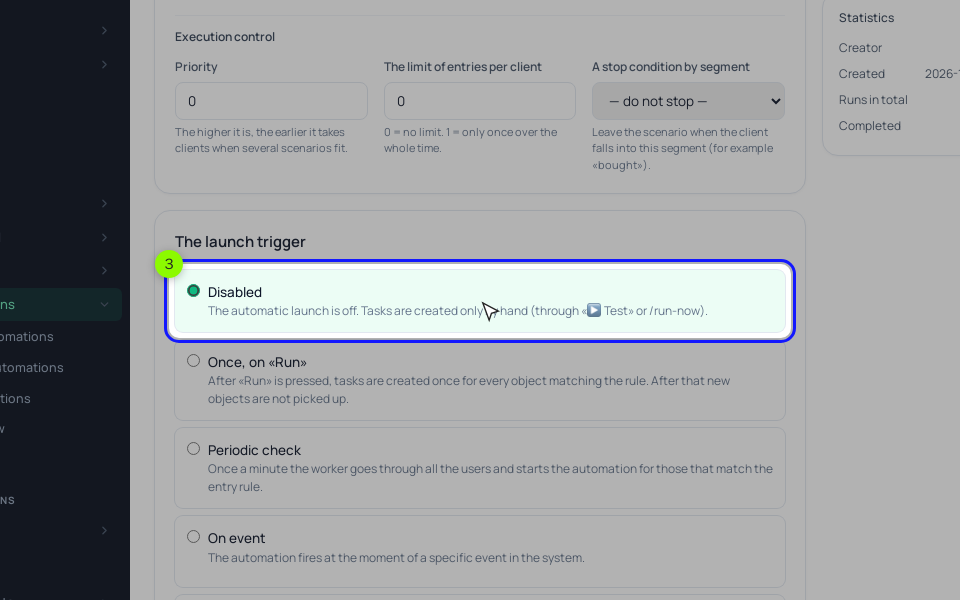
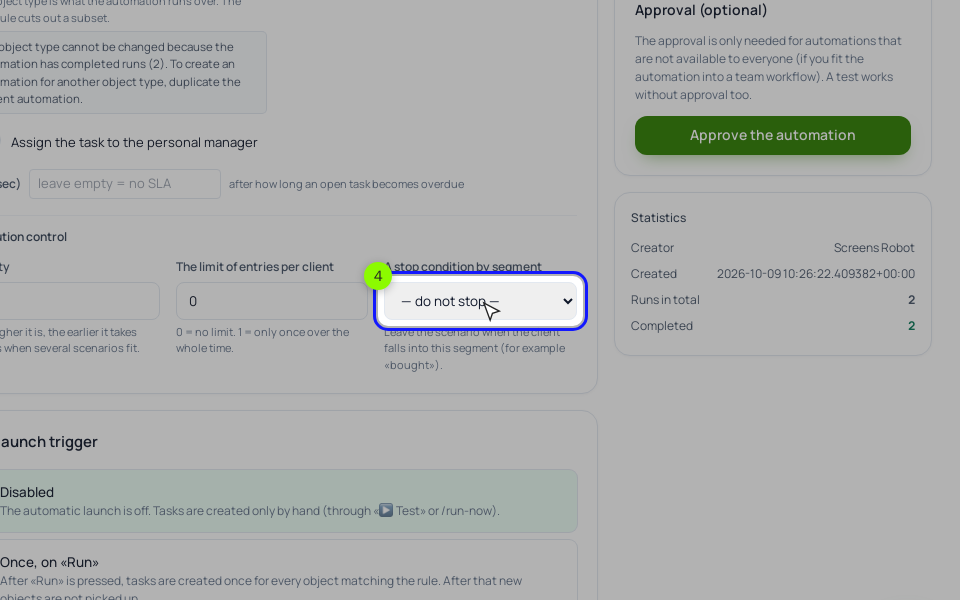
Limit and stop. Create a dynamic segment in "Students" → "Segments" with "Training access" to Freelancer Tax Prep. Under "Execution control", set "The limit of entries per client" to 1 (0 means no limit) and pick that segment in "A stop condition by segment". Runs waiting on a delay are checked too, so a buyer leaves before the next email.
Blocks. On the "Process" tab, "+ Add a block": "Operation" → "Grant course access" (the free course), "Send an email" (email 1), then "Wait for condition" with "Course participant: lesson (entry, homework, video)" → the free lesson → homework answered, timeout 3 days (all timeout fields at zero means 30 days). The main output goes to "Delay": 1 day "From the current moment", with "After the delay wait for the time:" set to "Any weekday" and 09:00. Then "Send an email" (the offer), "Delay" of 2 days and a "Condition" with "Email activity" → "clicked in an email in N days", N = 2: "Yes" to email 4, "No" to "Operation" → "Add a tag". The first wait's timeout output goes to the reminder and a second "Wait for condition" of 4 days, whose main output leads back to the 1-day delay and whose timeout leads to "Add a tag" tax-cold.
"Email activity" counts opens and clicks in emails sent by processes. Give every block a "Label" like "E3 offer": statistics list blocks by label.
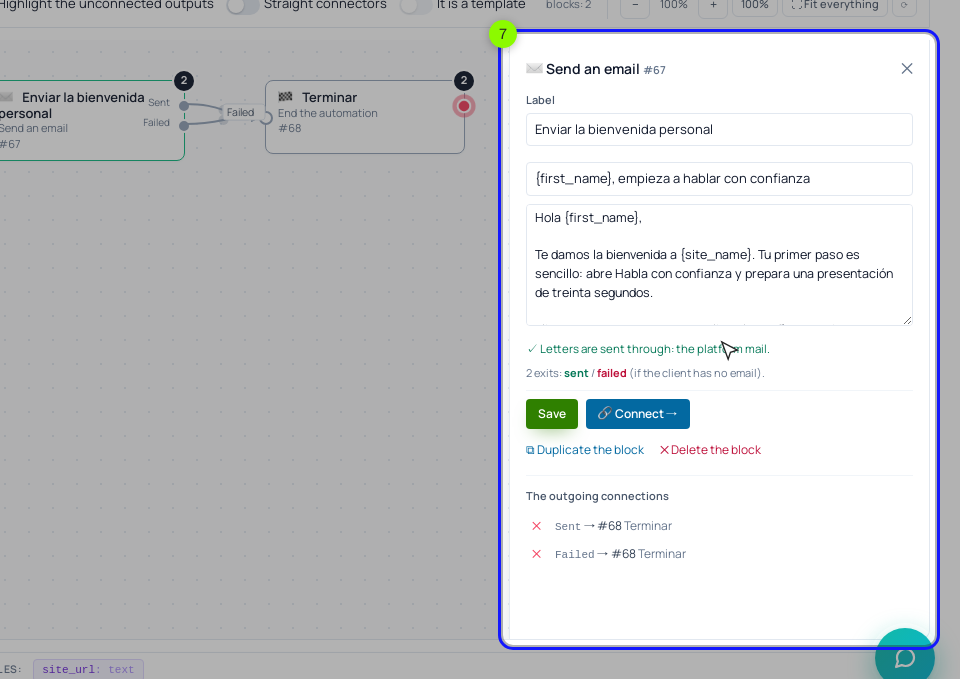
"Send an email" has two outputs, "Sent" and "Failed"; "Failed" means the person has no email or unsubscribed. An output with nothing connected ends the run, the run counts as completed, and the run log on the "Tasks" tab notes that the branch ended there. "Highlight the unconnected outputs" above the canvas marks every such output.
Testing. "🧪 Simulate" pushes made-up people (100 by default) through the canvas without sending anything: every "Condition" splits them 50/50 and every wait counts as passed, so it finds broken arrows but never walks a timeout output. For the real paths, click "⧉ Duplicate the process", change days to minutes in the copy and run "▶ Test" with a new address per path (with the entry limit at 1, an address goes through once). The test ignores the trigger and the rule, and the emails really go out. A wait checks its rule every 5 minutes, so a 2-minute timeout still takes up to 5.
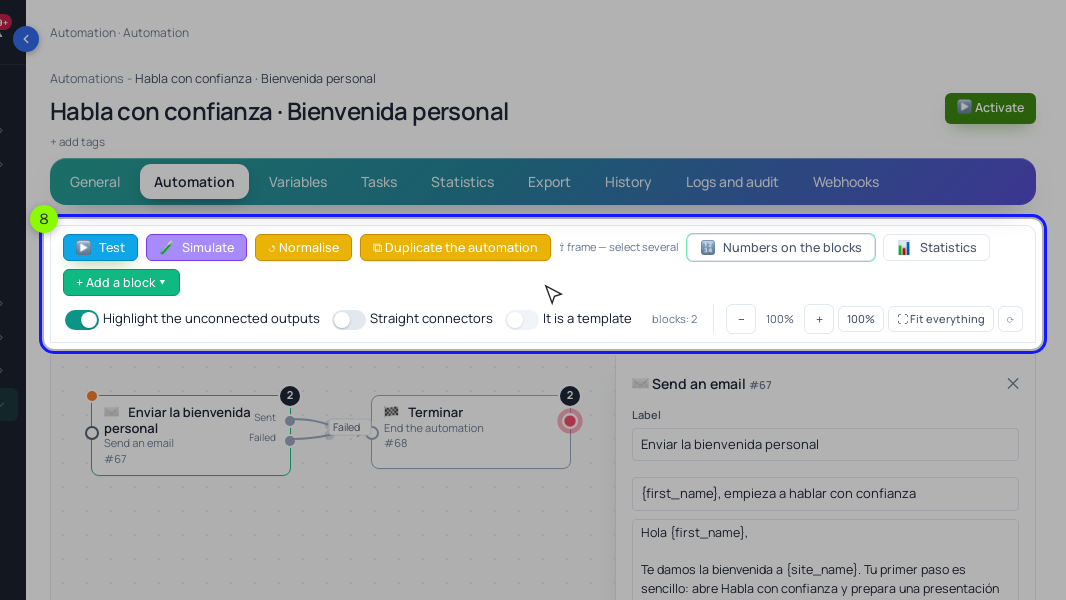
Starts from a form work even in an inactive process, so connect the form only after the tests pass, then click "▶ Activate".
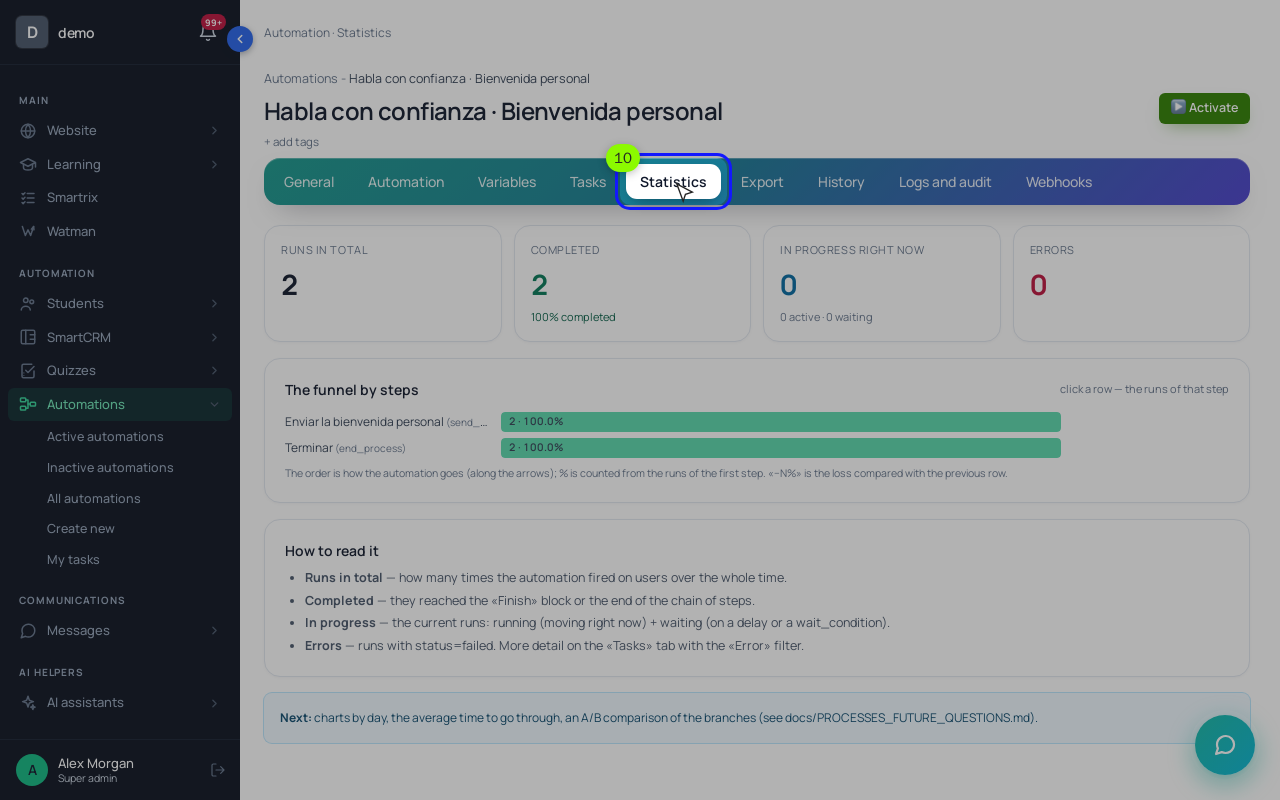
Statistics. The "Statistics" tab has "Runs in total", "Completed", "In progress right now", "Errors" and "The funnel by steps": runs per block, the loss against the previous row, who stands on a block now and who failed there.
Before you switch it on
- Write the spec table and count the paths.
- Make Email required in the form.
- Create the buyers segment; set it as the stop condition and the entry limit to 1.
- Build and label the blocks; highlight the unconnected outputs.
- Run Simulate, then test every path on a copy with minutes instead of days.
- Connect the form, activate, and buy with a test address to check that the run stops.
- After a week, compare the funnel by steps with your paper numbers.