Webinar Invitation Emails: Templates for a Course Launch
A webinar invitation email has one job: get a click to the registration page. The template that does it is short. A subject line that names the result and the day, a first sentence about what the reader will be able to do, the date and time with a time zone, two or three lines on what the class covers, who it's for, one button, and a line about the recording. Nothing about the course price; that belongs to the webinar itself.
For a course launch you need more than one email, though not many. We'd send three invitations to people who haven't registered (8 days, 4 days and 1 day before) and three emails to people who have: a confirmation right after they register, a reminder the day before and one an hour before. Below are all six as full templates, with subject lines, timing and the stop rule for each.
The example: say you teach makers to sell handmade goods on Etsy, and your course First Sales on Etsy costs $149. The free class is "Why your listings get views but no sales", live on Tuesday at 6 p.m. Eastern Time, 60 minutes. Your list has 1,800 makers who downloaded your free pricing worksheet. Where those registrations come from beyond your own list (partners, posts, ads) is covered in webinar promotion for course creators.
What a webinar invitation template needs
The time zone line is the one people leave out. "6 p.m." means three different evenings to a list spread over New York, Chicago and Los Angeles. Write the zone in words and a city, and add a second zone if a large part of your list lives there. The US and Europe change their clocks on different weekends in spring and autumn, so check the gap again if your webinar falls near those dates.
One button, linked to the registration page, not your homepage. Extra links to your shop or your course are exits that aren't the one you want.
Who gets which email, and when
Day 0 below is the day of the first invitation, Monday, eight days before the Tuesday class. Each invitation goes only to people who haven't registered yet. Registrants get their own short track. Change the days to fit your launch and copy the plan.
Example plan for the free class before the $149 course. Day 0 is the first invitation; the class is on day 8. The confirmation email is not on a day: it goes out right after each person registers.
- Day 0. Invitation 1 to the whole list: the result, the date and time with time zone, three topics, one button. Stop: registered.
- Day 4. Invitation 2 to people who haven't registered: one check they can do now, then the class details. Stop: registered.
- Day 7. Reminder to registrants: the personal room link and what to bring.
- Day 7. Last invitation to people who haven't registered: date, time, button, recording line. No invitations after this.
- Day 8, an hour before the start. Reminder to registrants with the personal link first.
Why three invitations and not five: every invitation goes to fewer people than the last, because the ones who registered have left the list of non-registrants, and every one costs you some unsubscribes among the rest. Say 144 people register after the first email. The second goes to 1,656, not 1,800. If 72 more register, the last one goes to 1,584. A fourth invitation would reach the people who have now ignored three, and we'd rather keep them for the next launch.
No email in this plan makes the course offer. The invitations sell the hour; the course is sold in the room and in the webinar follow-up emails.
Six webinar invitation email templates
Change the class, the date and the details to your own. Text in square brackets is where your links go. {first_name | there} puts in the first name, or "there" if you don't have one; {webinar_link} is the person's own link to the room, which only registrants have.
Invitation 1: eight days before
Subject: Free class Tuesday: why your listings get views but no sales Preheader: 60 minutes, 6 p.m. Eastern, three fixes you can make the same night
Hi {first_name | there},
On Tuesday I'm teaching a free live class on the three places where a listing loses buyers: the first photo, the title and the shipping price. We'll fix real listings on screen.
Tuesday, [date], 6 p.m. Eastern Time (New York), 60 minutes.
It's for makers who have a shop and a few listings. No shop yet? Come anyway and bring questions instead of listings.
[Save my seat]
Can't make it live? Register anyway and the recording comes to you the next morning.
Lena
P.S. Bring the link to one listing that gets views but no sales. I'll fix a few of them in the last 15 minutes.
Confirmation: right after registering
Subject: You're in: Tuesday at 6 p.m. Eastern, your link inside Preheader: Add it to your calendar now
Hi {first_name | there},
You're registered for "Why your listings get views but no sales", Tuesday, [date], 6 p.m. Eastern Time (New York).
Your link to the room: {webinar_link}
It's yours alone, so please don't forward it. A friend can register here: [registration page].
Before Tuesday, pick one listing that gets views but no sales and keep its link handy. And put the class in your calendar now, so Tuesday evening stays free.
Lena
People search their inbox for this email at 5:55 p.m. on Tuesday, so keep the link near the top.
Invitation 2: four days before
Subject: What buyers check in your first photo (Tuesday's free class) Preheader: One of the three fixes, and you can check it now
Hi {first_name | there},
A quick check before Tuesday. Open your shop on your phone and scroll your listings. Can you tell what each item is, and roughly how big it is, without tapping? If you can't, a buyer scrolling past can't either.
That's the first of three fixes in Tuesday's free class. The other two are titles and shipping prices.
Tuesday, [date], 6 p.m. Eastern Time (New York), 60 minutes.
[Save my seat]
Lena
The second invitation teaches one small thing. "Reminder: my class is on Tuesday" gives someone who ignored the first email no new reason.
Reminder: the day before
Subject: Tomorrow at 6 p.m. Eastern: bring one listing Preheader: Your link is inside
Hi {first_name | there},
Tomorrow, Tuesday, at 6 p.m. Eastern Time: "Why your listings get views but no sales".
Your link: {webinar_link}
Bring the link to one listing that isn't selling. In the last 15 minutes I'll fix a few of them live.
Lena
Last invitation: the day before, to people who haven't registered
Subject: Tomorrow, 6 p.m. Eastern: last note about the free class Preheader: After this, back to the usual Thursday tips
Hi {first_name | there},
Last email about this: the free class on listings that get views but no sales is tomorrow, Tuesday, at 6 p.m. Eastern Time, 60 minutes.
[Save my seat]
If the time doesn't work, register anyway and the recording comes to you on Wednesday morning.
Lena
Reminder: one hour before
Subject: Starting in an hour: your link to the class Preheader: 6 p.m. Eastern, 60 minutes
{webinar_link}
Hi {first_name | there}, we start at 6 p.m. Eastern, an hour from now. The link above is your own. Have your listing open in another tab.
Lena
The link comes first because people open this one on a phone, often already late.
Webinar email subject lines that say what's inside
A subject line has to answer "what is this and when", before the preheader adds the detail. Some patterns for the invitations, with the Etsy class as the example:
| Pattern | Subject | When we'd use it |
|---|---|---|
| Result and day | Free class Tuesday: why your listings get views but no sales | Invitation 1 |
| The reader's problem as a question | Views but no sales? Free class on Tuesday | Invitation 1, as a test version |
| One concrete tip | What buyers check in your first photo (Tuesday's free class) | Invitation 2 |
| Time and the thing to bring | Tomorrow at 6 p.m. Eastern: bring one listing | Day-before reminder |
| Plain status | You're in: Tuesday at 6 p.m. Eastern, your link inside | Confirmation |
| Time left and the link | Starting in an hour: your link to the class | Hour-before reminder |
What we'd avoid: "You're invited!" with nothing else (it says nothing about the class), a fake "Re:" or "Fwd:", capital letters, and "Last chance" when nothing closes. "Last note" is honest: it is the last invitation, and the class is still free.
Where invitation emails go wrong
- The second invitation goes to people who already registered. They wonder if their registration failed, and some register twice.
- The time has no zone, or the zone is "EST" in a month when New York is on daylight time.
- The button leads to the homepage, or to a registration page with a different date.
- The recording is promised and then not sent. If you won't record, say "live only" in every email.
- The personal room link goes into an invitation. People who haven't registered don't have one, so the link comes out empty or broken.
- Replies go to an inbox nobody reads. A reply like "can't make it, will there be another?" is a person who wants the class.
These templates also assume a one-off live class. For an automated webinar on demand there is no date, and the invitation becomes "watch now"; how that works is in the automated webinar guide.
How to set this up in Scholaxy
In Scholaxy the invitations are broadcasts to a segment of people who haven't registered, the confirmation is a process started by the registration page, and the two reminders are the built-in webinar emails with your own text.
Step 1. Who to invite.
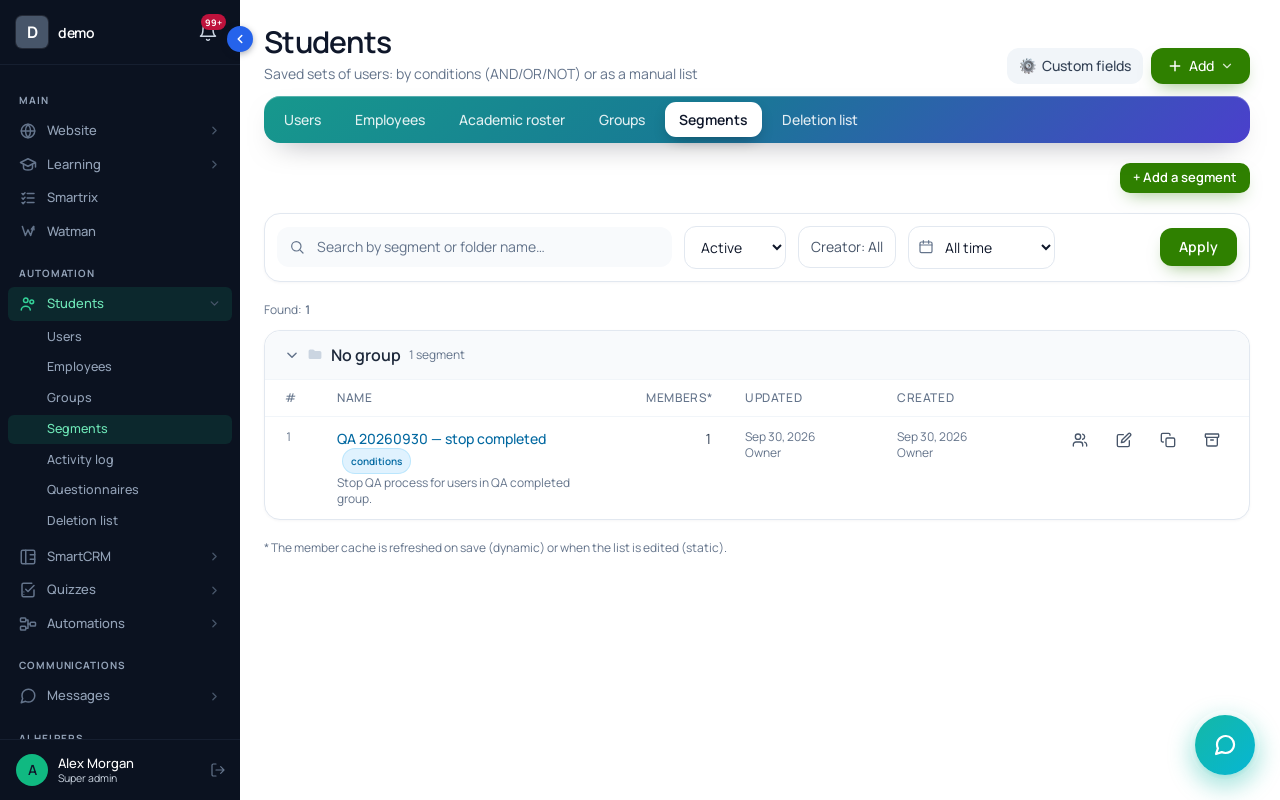
In the "Webinar signup" block on your registration page, put registrants into a group with "Add to the groups", for example "Etsy class registrants". Then create a "Dynamic" segment with two conditions: "In a group" set to your list's group, and "In a group" set to the registrants group with "NOT" switched on. The segment is recalculated at the moment each broadcast is sent, so the second invitation automatically skips the 144 people who registered after the first.
Step 2. The three invitations.
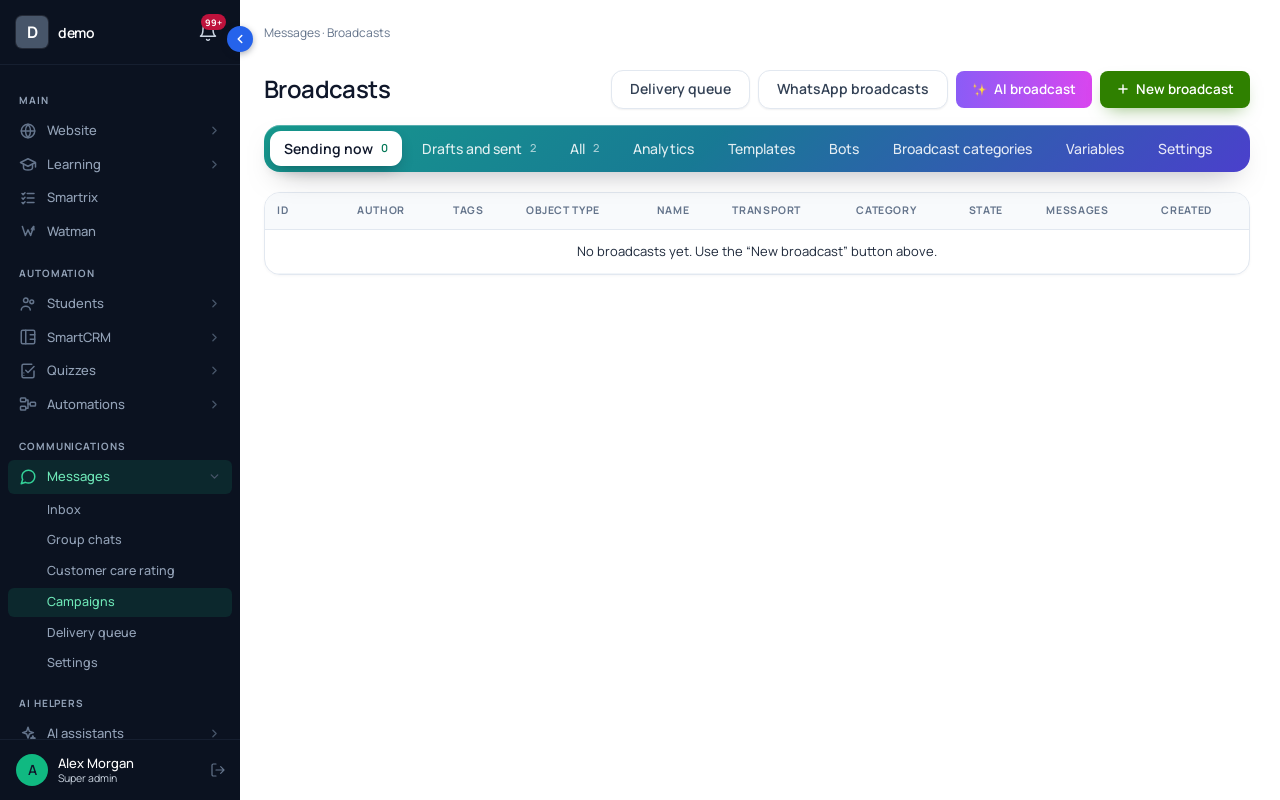
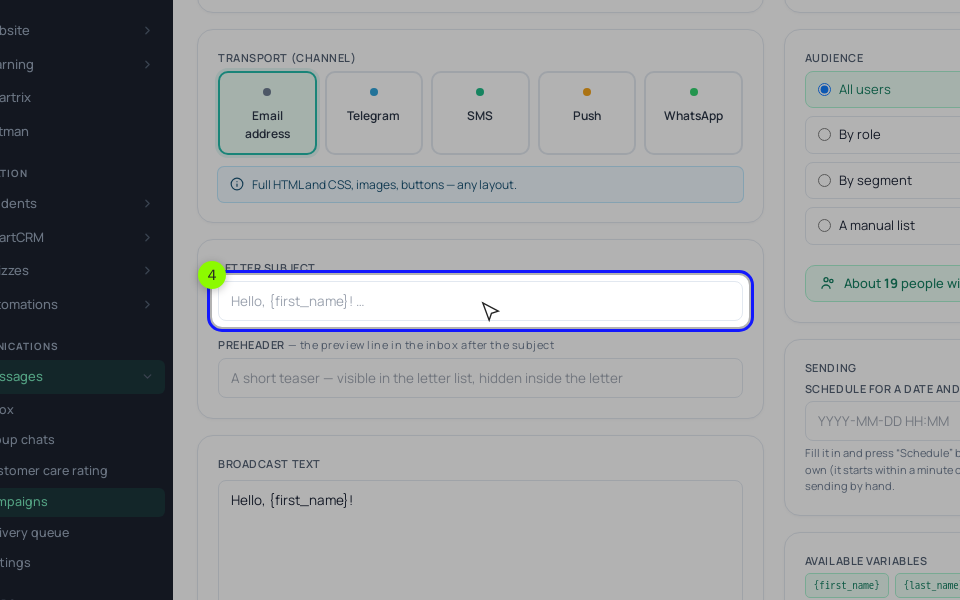
Click "New broadcast", choose "Email address" in "Transport (channel)" and the "Visual" mode. Paste the subject into "Letter subject" and the second line into "Preheader". Add the text and a "Button" block with the link to your registration page, tagged for this email, for example /p/etsy-class?utm_source=list&utm_campaign=invite-1, so the webinar's "📊 Analytics" shows how many registrants each invitation brought. Set "Audience" to "By segment", click "Save the draft", then "Test to email" on the broadcast card, and "Schedule" it for its day and time (in your school's time zone). Repeat for invitations 2 and 3. To reuse the layout, save it under "Templates" with "Create a template" and load it into a new broadcast in "HTML/CSS" mode from the "load a template" list. Broadcasts need SendPulse or your own SMTP connected, and each email ends with an unsubscribe link.
Step 3. The variables.
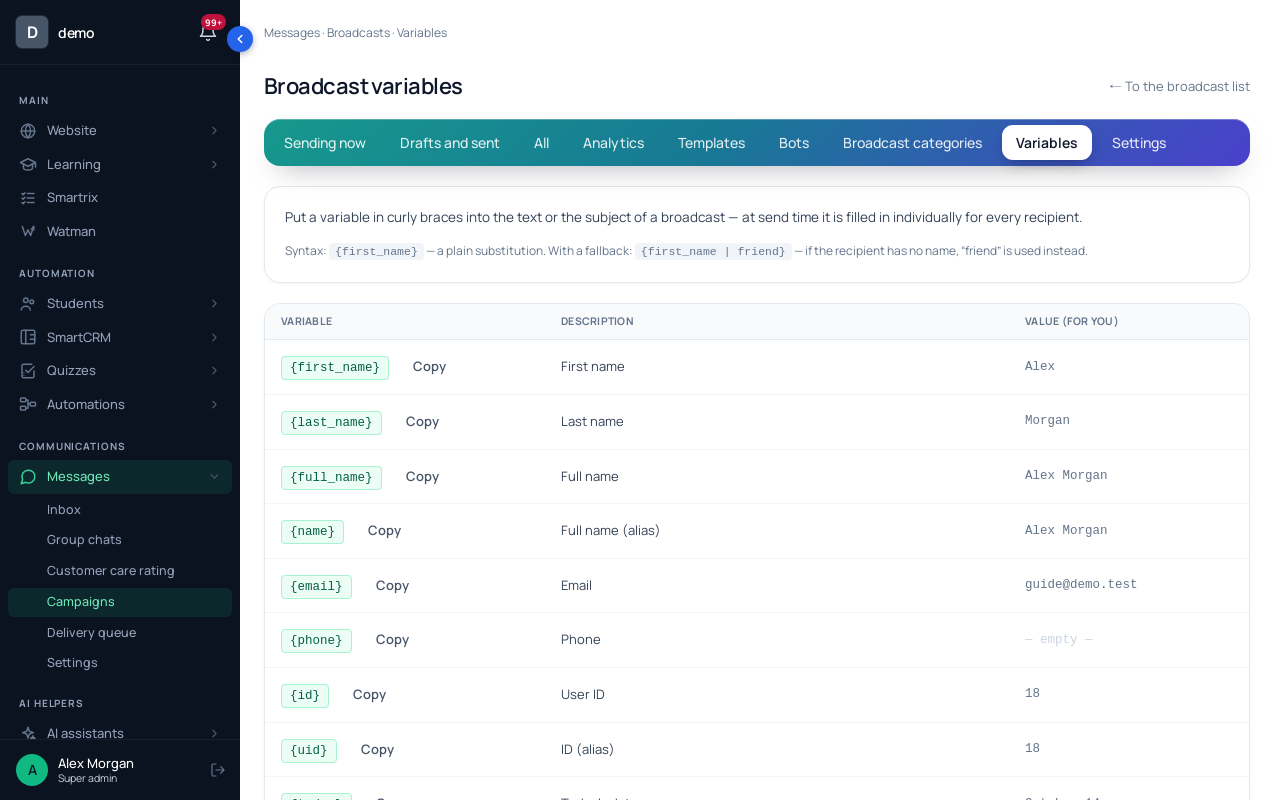
The "Variables" tab lists every placeholder with its value for you. {webinar_link} is the "Link to the webinar room (personal)": the room link of the nearest upcoming webinar the recipient is registered for. For someone who hasn't registered it's empty, which is why the invitations link to the registration page instead. If you send a broadcast to registrants, give it a fallback: {webinar_link | https://yourschool.example/p/etsy-class}.
Step 4. The confirmation. Nothing is emailed at the moment someone registers, although the block's default "The message after signing up" says the link has been sent. In the block's "Start a process", choose a process with one "Send an email" step that holds the confirmation template. {webinar_link} works there too. The process must be active; set "The launch trigger" to "Disabled", since the block starts it. The webinar funnel walkthrough shows the block setup step by step.
Step 5. The reminders.
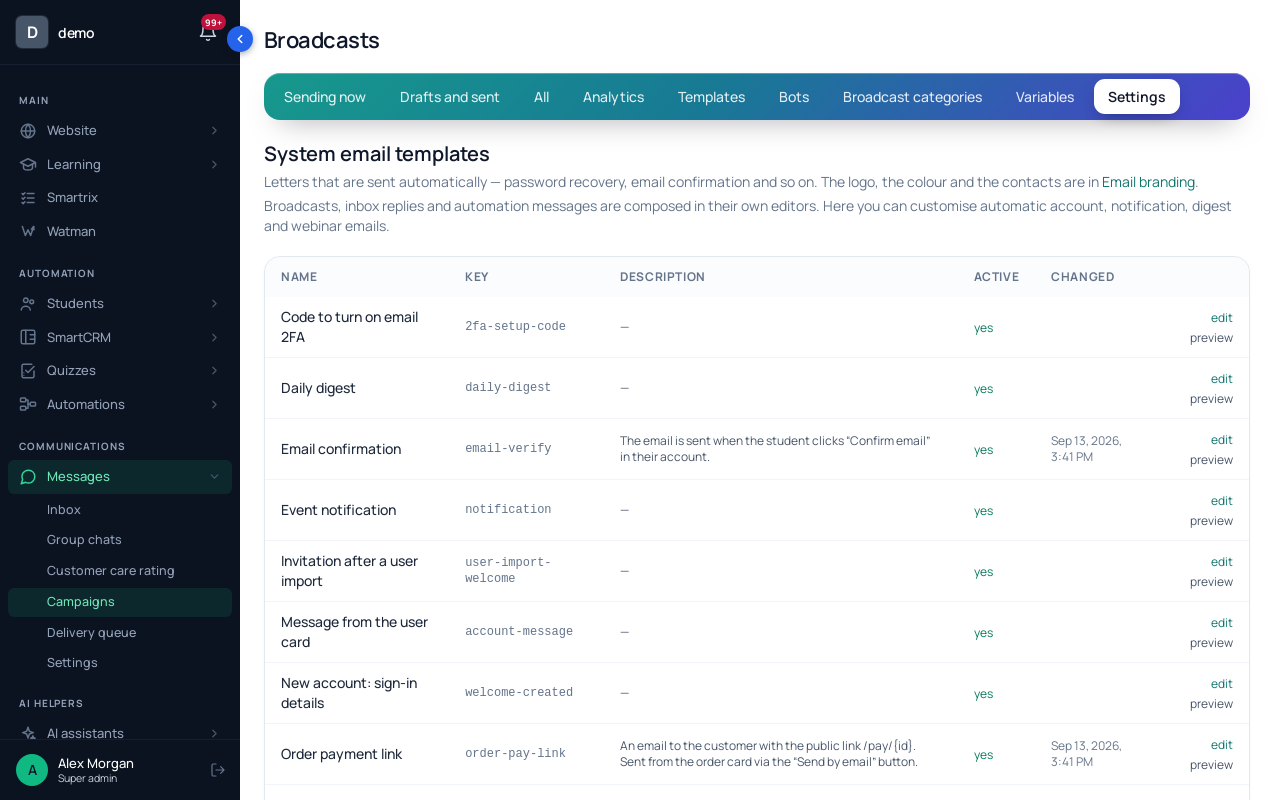
A live webinar with a "Date and time" and the switch "Send the system emails about the webinar" (on by default) sends registrants a reminder about 24 hours before and another about an hour before, plus a "you missed it" email afterwards. Their texts are in "Email templates": "Webinar: one day before", "Webinar: one hour before" and "Webinar: missed session". Open one, change "Subject of the letter" and "HTML body (Jinja2)", and switch on "Use this custom template". Variables there sit in double curly braces. For the day-before email, the subject could be Tomorrow: {{ webinar_title }} and the body:
{{ greeting }}
<p>Tomorrow, {{ starts_at }}: "{{ webinar_title }}".</p>
<p>Bring the link to one listing that isn't selling.</p>
{{ button_html("Join the class", action_url) }}
starts_at prints the date and time in the recipient's own time zone, so you don't have to write the zone. Keep action_url: it's the person's room link. Two things to know. These templates are shared by every webinar in your school, so keep course-specific lines out of them or update them before each launch. And a saved custom template is used for all recipients, while the default follows each person's language; "Restore translated default" brings it back. Click "✉ Send a test to my own email" before the launch. Read the missed-session email too: without a recording attached, its default text promises "the schedule of the next live sessions".
If you'd rather send your own reminders as broadcasts, turn "Send the system emails about the webinar" off for that webinar, or registrants get two emails about the same thing.
Before you schedule the first invitation
- Write the six emails with your class, date, time zone and a real thing to bring.
- Create the registrants group in the signup block and the "not registered yet" segment.
- Build the confirmation process, activate it, and register with a second address to check it arrives with a working link.
- Put your reminder texts into "Webinar: one day before" and "Webinar: one hour before", and send yourself a test of each.
- Schedule the three invitations with their own UTM tags, and check the "About N people will receive it" counter on each.
- The day after the class, compare registrations per invitation in the webinar's "📊 Analytics" and keep the subject line that brought the most.