Webinar Follow-up Emails: What to Send After Your Presentation
A webinar follow-up email goes to people who registered for your webinar and haven't bought. It carries the recording, answers to the questions people asked, and the offer you made in the room, written down so people can read it at their own pace. For a course webinar we'd send four of them over six days: the recording link on day 0, the offer on day 1, answers on day 3 and a last note on day 6. The series stops the moment someone buys.
Write every email so it works for two readers at once: the person who watched to the end and the person who never pressed play. Split them only if your email tool really knows who attended (check it, don't assume it). An email that says "sorry we missed you" to someone who watched for an hour costs more trust than it wins.
This article continues the webinar funnel walkthrough, with the same example. Say you teach sewing and sell Fit Your Pattern, a $139 video course on adjusting patterns so clothes fit. The free webinar, "Why your handmade clothes don't fit, and three fixes", is a 60-minute recording on demand with the offer at minute 45. In the example month, 1,000 people register, 21 buy from the room, and 800 never reach minute 45: 600 never enter and 200 leave early. The follow-up emails bring 11 of the month's 32 sales.
Who gets the follow-ups: segments from the data you have
Before writing, list what your system actually knows about each registrant. In the sewing example that is:
- They registered, and when. Everyone in the series.
- They bought the course. This is the stop rule, not a segment to write to.
- They left a request through a form in the room. They need a personal reply within a day, not a chain.
- Where they came from (a tag or UTM source). Useful for reading results, not for writing different emails.
- Whether they attended and for how long. This depends on your webinar tool, and on whether it passes that data to your email tool.
If the last item is missing or unreliable, don't build branches on it. Write one version and put two short lines in it: "If you've watched…" and "If you haven't got to it yet…". It makes each email two sentences longer. In exchange, nobody gets the wrong email.
The webinar follow-up email sequence at a glance
Four emails, not seven. Each extra email is one more chance to sell and one more reason to unsubscribe before the offer has been read. Four covers what a viewer needs: the class itself, the offer in writing, answers, and a clear end. If your numbers later show people buying on the last email, test a fifth between three and four.
Timing. On demand, day 0 is the day of registration and email 1 goes out an hour later, while the person may still be watching. For a live webinar, day 0 is the day of the broadcast and email 1 goes out an hour or two after it ends, once the recording is ready.
Example sequence for the $139 sewing course:
- Day 0, an hour after registering. The personal room link, the worksheet, one line about the course for people who already watched. Stop: bought the course.
- Day 1. The offer: the three fixes from the class, what the course adds, $139, who it is for. Stop: bought the course.
- Day 3. Four questions with short answers, the class link, the course link. Stop: bought the course.
- Day 6. Last note: who the course is not for, the link once more, what comes next. Stop: bought the course; after it, the weekly newsletter.
Four webinar follow-up email examples, in full
Change the course, the fixes and the price to your own. Links in square brackets are where your own links go.
Email 1, day 0: the link
Subject: Your link to the fitting class, and the worksheet
Hi {first_name | there},
Here's your own link to "Why your handmade clothes don't fit": {webinar_link}
It's a recorded class, 60 minutes, and it starts when you press play, so tonight or the weekend both work. The link is yours alone. If a friend wants to watch, send her the signup page instead.
Print the fitting worksheet before you start: [worksheet]. At minute 12 we fill in the first three boxes together, so keep a tape measure and a pencil nearby.
If you've already watched: the course I talk about at minute 45 is Fit Your Pattern, and it's here: [course page]. I'll write about it properly tomorrow.
Ruth
On demand, this email is the replay email, and it is also the cheapest way to raise attendance: 600 of the 1,000 registrants in the example never entered the room. The offer gets one line, for people who have already seen it.
Email 2, day 1: the offer in writing
Subject: Fit Your Pattern: what's inside, $139
Hi {first_name | there},
In the class I showed three fixes: measuring the high bust, the full bust adjustment on paper, and checking a muslin before you cut good fabric. If you haven't watched yet, the first fix takes 12 minutes and it's worth doing before anything else: {webinar_link}
Fit Your Pattern is the rest of the method:
- 5 modules, 31 lessons of 5–12 minutes
- shoulders, back, waist and hips, each adjusted on a real pattern on camera
- one muslin you sew in module 2 and fit as you go
- homework: send photos of your muslin, and I reply with written notes within 3 working days
It's $139, paid once. [Join Fit Your Pattern]
It's for you if you can sew a straight seam and have finished at least one garment. If you've never used a sewing machine, take a beginner course first. This one assumes the basics.
Ruth
The price is the same as on the slide at minute 45 and on the checkout page. If the three disagree, people notice, and the email loses to the doubt.
Email 3, day 3: answers
Subject: Your fitting questions, answered
Hi {first_name | there},
These came up after the class. Short answers here, longer ones in the course.
Do I need a dress form? No. Every adjustment is made on the flat pattern and checked on you in a muslin.
Does it work with commercial patterns? Yes, the lessons use a commercial bodice and skirt. If the seam allowance is included, lesson 2 shows how to draw the stitching line first.
I'm between two sizes. Which one do I cut? Choose by your high bust for tops and dresses, then adjust from there. That's the first fix in the class, at minute 12: {webinar_link}
How much time does it take? Plan one evening per adjustment and one for sewing the muslin.
If your question isn't here, reply to this email and I'll answer it.
The course, $139: [Join Fit Your Pattern]
Ruth
Use the questions your registrants really asked, from the chat or your inbox. The four above are placeholders for the sewing example. Only promise to answer replies if someone reads the inbox that day.
Email 4, day 6: the last note
Subject: Last note about the course (then back to Sunday tips)
Hi {first_name | there},
This is the last email about Fit Your Pattern for now.
Who it isn't for, so you can decide quickly. If you sew mostly knits, most of the course won't help: it works on woven fabrics. If you want to draft patterns from scratch, this course adjusts patterns that already exist. And if you haven't finished a garment yet, finish one first. The course will still be here.
If none of that is you, and your clothes pull, gape or slide off the shoulder, here it is: [Join Fit Your Pattern] ($139). The class link still works: {webinar_link}
From next week you'll get my usual Sunday sewing tip, one email a week, with an unsubscribe link at the bottom of each.
Ruth
No "last chance" and no countdown, because nothing closes. If something really does close (a cohort that starts on a date, a bonus you will actually stop giving), say what closes and when, with the time zone, and keep to it.
Where webinar follow-ups go wrong
- Buyers keep getting the offer. The stop rule is missing, or it checks "has an order" instead of "has paid". An unpaid order is not a sale.
- The replay link expires without warning, or the email promises a replay "for 48 hours" while the room stays open for months.
- The tone assumes attendance: "as you saw at minute 30" goes to 600 people who saw nothing.
- Results are judged by opens. Count sales per email, or at least clicks on the course link.
- The series runs on forever. After email 4, people go to the newsletter, or they unsubscribe from everything.
This sequence also doesn't fit every case. For a $1,500 program, email 2 should offer a call rather than a checkout. For a cohort with a real start date, email 4 becomes "enrollment closes on Friday at 6 p.m. CET", which is fine because it's true.
How to set this up in Scholaxy
In Scholaxy the four emails are one process, started by the "Webinar signup" block on your registration page (setting up that page is step 1 of the webinar funnel article). The process stops for anyone who lands in a buyers segment.
Step 1. The buyers segment.
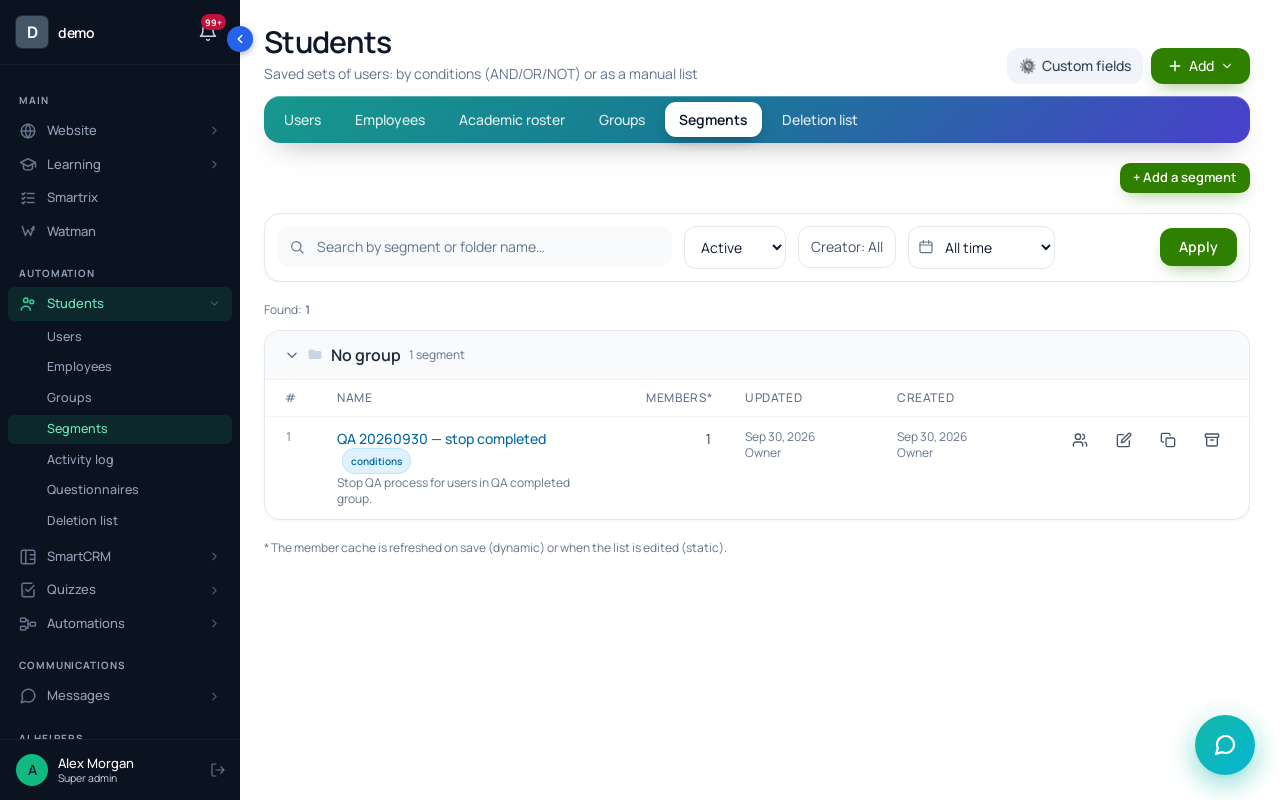
Click "+ Add a segment", choose "Dynamic", name it "Bought Fit Your Pattern" and click "Create and open". Click "+ Add a group of conditions", choose "Training access", set it to the "open now" option with your course, then click "Save and recalculate". A dynamic segment updates itself, so new buyers join it on their own.
Step 2. The process.
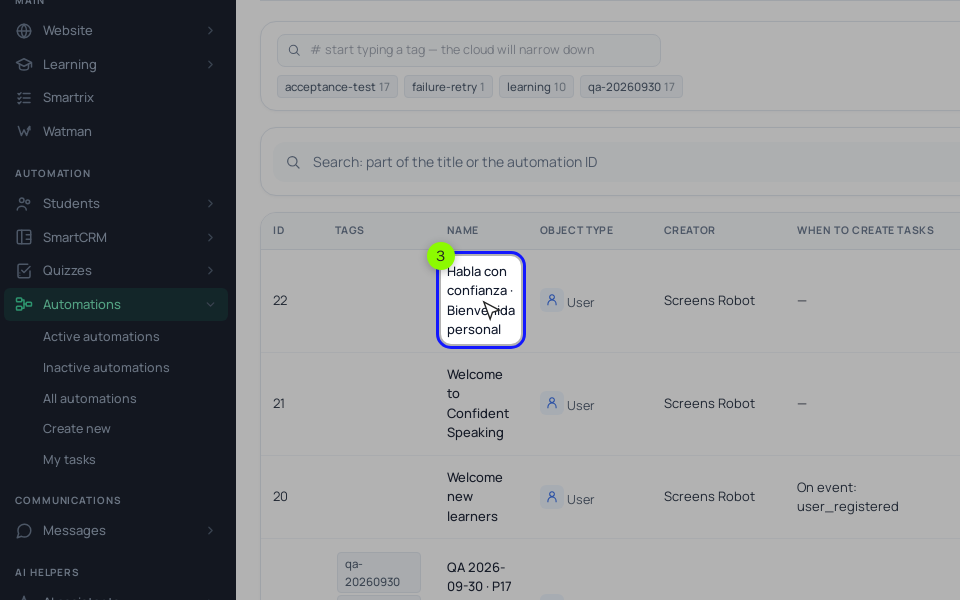
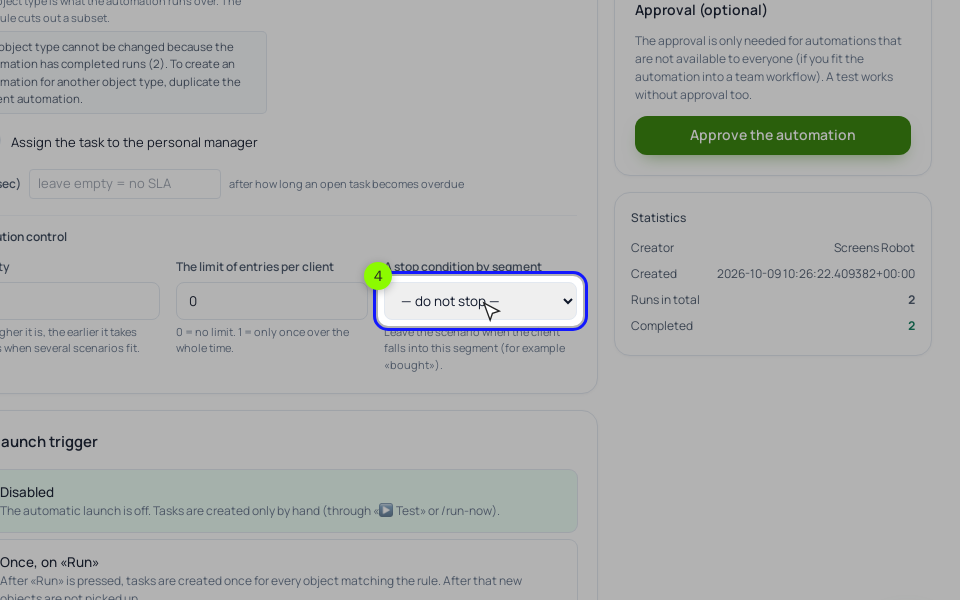
Create the process "By LMS users". On the "General" tab, set "The launch trigger" to "Disabled": the signup block starts it. Set "The limit of entries per client" to 1 and pick "Bought Fit Your Pattern" in "A stop condition by segment"; whoever lands in that segment leaves the process at whatever block they are waiting on. Click "Save".
On the "Process" tab, add with "+ Add a block": "Delay" 1 hour, "Send an email" (email 1), "Delay" 1 day, "Send an email" (email 2), "Delay" 2 days, "Send an email" (email 3), "Delay" 3 days, "Send an email" (email 4), then "End the process". {webinar_link} in a "Send an email" text becomes the person's own room link. It holds one link only: if someone is registered for several webinars, a dated upcoming one comes first. Use "Send an email" rather than "Run a broadcast": chain emails from "Run a broadcast" don't respect unsubscribing yet. A "Send an email" step goes to its failed output when the person has no email or has unsubscribed, and the "Tasks" log shows it.
Run "🧪 Simulate" (nothing is sent), then "▶ Test" with your own address (those emails really go out), and click "▶ Activate". Activation matters here: the signup block's "Start a process" only starts active processes and marks the others "it will not start". Then choose this process in the block and leave "Start on every sign-up" off.
Requests from a sales block in the room land in "SmartCRM" → "Orders" with the "New" status. They don't stop the chain, because nobody has paid yet. Reply to those people yourself the same day and send the payment link from the order card with "✉️ Send to …".
Step 3. A one-off live webinar.
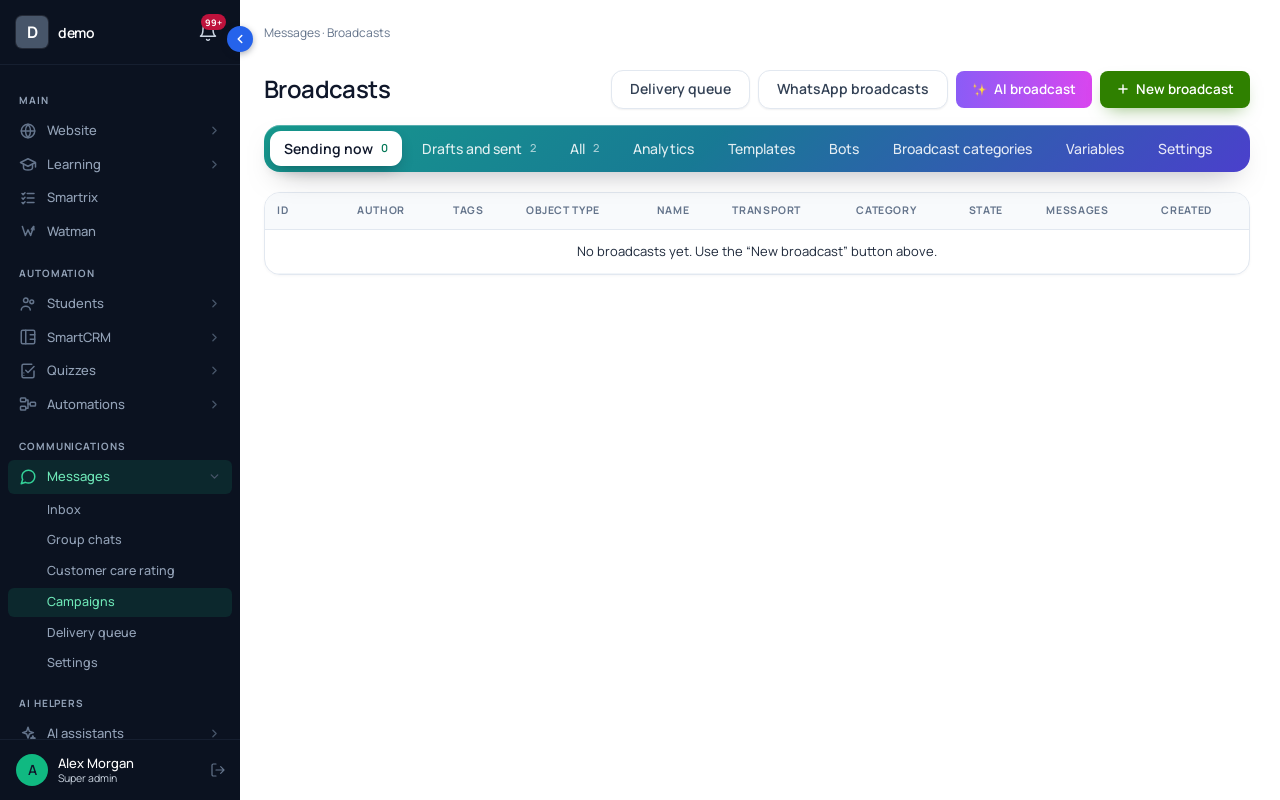
With a date set and "Send the system emails about the webinar" on, Scholaxy sends a reminder a day and an hour before and a "you missed it" email with the personal link to people who didn't come. That is the one attendance-based email you get without any setup. For the rest of the series, broadcasts work well: in the signup block, add registrants to a group ("Add to the groups"), build a dynamic segment with "In a group" plus "Training access" set to its "no access" option for the course, and schedule four broadcasts "By segment". The segment is recalculated at sending time, so buyers drop out. Broadcasts go out only through SendPulse or your own SMTP, and they include an unsubscribe link.
Splitting by attendance. For a live webinar you can do it by hand: in the webinar's "📊 Analytics", click a group in "Who stayed how long…" to see the names and emails, then paste them into a "Static" segment and send that group its own broadcast. The condition list for segments and for the process "Condition" block also includes "Webinar attendee", with an "Attended" field ("yes" or "registration only"). It isn't documented in the help center yet, and we haven't tested it on a running automated webinar. Before you build branches on it, register two test addresses, enter the room with one of them, and check that a dynamic segment with this condition holds exactly that one. Until then, the one-version emails above need no split.
Setup order
- Write the four emails with your own course, price and real questions.
- Create the buyers segment and check that a test purchase lands in it.
- Build the process: limit 1, stop segment, four emails with delays of 1 hour, 1 day, 2 days and 3 days.
- Simulate, test on your own address, activate.
- Choose the process in the "Webinar signup" block, with "Start on every sign-up" off.
- Register with a second address and check that email 1 arrives with a working room link.
- After two weeks, compare "The funnel by steps" on the process "Statistics" tab with the dates of paid orders in "SmartCRM" → "Orders". Rewrite the weakest email first, and leave the timing alone until you have.