Email Marketing for Course Creators: A Practical Welcome and Sales Sequence
Email marketing for course creators comes down to three kinds of email. A welcome series greets each new subscriber and leads to one clear offer. A short sales sequence (often the end of that same series) makes the offer and stops the moment the person buys. A regular newsletter keeps everyone else hearing from you between launches. Behind all three sit two things that decide whether any of it works: a list of people who asked for your emails, and a sending setup that mailbox providers trust.
If you only build one thing this month, build the welcome series. It runs for every new subscriber without you, and it's the email most of them read closely.
Say you teach bonsai to beginners. Your course, Small Trees, costs $89 and has 18 video lessons, from choosing nursery stock to a first repotting. The freebie is a one-page "first-year care calendar". About 300 people a month download it, your list has 1,600 subscribers, and 120 of them have bought the course. These are example numbers for the walkthrough, not benchmarks.
Email marketing for course creators: the three kinds of email
The three kinds differ in what starts them, who receives them and when they end. Confuse them and you get a buyer who keeps receiving pitches, or a subscriber who gets a launch email on their first day.
| Kind | Starts when | Who gets it | Ends when | In the bonsai example |
|---|---|---|---|---|
| Welcome and onboarding | Someone signs up or buys | That one person | After a fixed number of emails | The care calendar, two lessons, one offer |
| Nurture and sales | Someone shows interest | That one person | They buy, unsubscribe or reach the last email | The offer for Small Trees and one follow-up |
| Broadcasts and newsletter | You pick a date | Everyone in a segment | It's one send | A tree fix every Thursday |
Welcome emails come in two flavours. A subscriber welcome greets someone who downloaded a freebie and doesn't know you yet. Student onboarding greets someone who just paid and needs to find lesson one; that one is covered in welcome emails for new students.
Nurture and sales emails deserve their own planning: the strategy is in lead nurturing for course creators, and six complete emails you can copy are in the drip campaign template. This article is about the system those pieces fit into.
The newsletter is the easiest part to skip, and it's the one that can sell the second course. A subscriber who didn't buy during the welcome series can still buy in month four, after a dozen useful Thursday emails, but only if you kept writing.
Building the list with consent
A list is only worth something if the people on it asked to be there. Bought lists, a workshop sign-in sheet, everyone who ever emailed you about something else: none of these people agreed to your newsletter. They mark it as spam, and spam complaints are what get a sender filtered for everyone. Depending on where your subscribers live, the law may also require consent before marketing email, so check the rules for your countries (this is good practice, not legal advice).
Consent on a form fits in two lines:
- What they get now ("the first-year care calendar, as a PDF") and what comes after ("a few emails about keeping your first tree alive, then one tree fix every Thursday").
- An unticked consent checkbox with a link to your privacy page.
Saying "every Thursday" up front lets people who don't want weekly email leave at the form instead of reporting you later.
Double opt-in (a confirmation link the person must click) gives a cleaner list and costs sign-ups, because some people never click. For a course list fed by a freebie, we'd use single opt-in with a mandatory consent box and a first email that arrives within minutes. If fake or mistyped addresses pile up, switch.
Deliverability without the jargon
Deliverability means your email lands in the inbox, not in spam. For a small school it depends on sending from your own domain, publishing the records that prove the mail is yours, and writing to people who want it.
Send from your own domain. An address like anna@smalltreesbonsai.com can be authenticated. A gmail.com address sent through an email service can't, because Google never authorized that service to send for gmail.com, and receiving servers notice.
Then three DNS records, which sound worse than they are:
- SPF is a list, published on your domain, of the servers allowed to send mail for it. Mail from a server not on the list looks forged.
- DKIM is a signature. The sending service signs each email, and the matching public key sits in your DNS, so the receiver can check the email came from your domain and wasn't changed on the way.
- DMARC tells receivers what to do when those checks fail (nothing, quarantine or reject) and where to send reports. Starting with p=none, the "nothing" policy, is normal.
You add them in the dashboard of the company where you bought the domain, and each service that sends as your domain gives you its own values. Gmail and Yahoo publish requirements for bulk senders that cover authentication and easy unsubscribing; Google's are in its email sender guidelines.
Two habits matter as much as the records: mail your most engaged people (last month's sign-ups) first on a new setup, and remove addresses that bounce.
How often to send
Our defaults for a course business:
- Welcome series: five emails over ten days. Tighter feels like pressure from someone the reader met yesterday; looser and they forget the freebie.
- Newsletter: once a week, on a fixed day, so readers expect it and you keep writing when there's no launch.
- Launch weeks: two or three extra emails, announced in the newsletter first.
- Never two sequences to one person at once.
That last rule needs setup, not willpower: the welcome series moves people into the newsletter only after its final email, and the newsletter goes to a segment, not to "everyone".
The welcome and sales sequence
Here is the outline for Small Trees: purpose and stop condition for each email. Full texts of a similar sequence are in the drip campaign template.
Example welcome and sales sequence for the $89 Small Trees course:
| Day | Purpose | Stops if | |
|---|---|---|---|
| 0 | Your first-year care calendar (and one question) | Deliver the freebie and set expectations | None, everyone gets it |
| 2 | The 10-second watering check | A quick win they can use today | Bought the course |
| 4 | Why your tree still doesn't look like a bonsai (free lesson inside) | Show the gap between keeping a tree alive and shaping it | Bought the course |
| 7 | Small Trees: 18 lessons from nursery pot to first repot ($89) | Make the offer once | Bought the course |
| 10 | Do I need expensive tools? (and two other questions) | Answer objections, then hand over to the newsletter | Bought the course |
The question in email one is for you. Replies like "my juniper is going brown at the tips" tell you what Thursday's email should cover and, later, what the second course is about.
Email three gives away a whole lesson. It feels expensive, and it's the most convincing thing you can send: the reader sees your format and voice before paying.
Unsubscribes, bounces and complaints
An unsubscribe costs you one reader. A spam complaint costs you some of your standing with that mailbox provider. So make leaving easy: a visible link in every marketing email, one click, no login.
Emails a buyer needs aren't marketing. Order confirmations, sign-in links and password resets must keep arriving after someone unsubscribes from the newsletter. And check how your tool treats unsubscribes in every place it can send from, automated sequences included: unsubscribe a test address and see what still arrives.
What to measure
Opens are the weakest number you have. Some mail apps load images in the background, which counts as an open whether anyone read the email or not. Use opens to compare two subject lines, and that's it. Watch these instead:
- Purchases per sequence. Say 300 people start the welcome series in a month and 9 buy within it: 3%, $801, about $2.67 per new subscriber.
- Clicks on the one link that matters in each email.
- Unsubscribes per email, against your own average. An email that loses twice as many people as the others has a tone or timing problem.
- Replies, and list growth after unsubscribes and bounces.
Give each change a month. At 300 sign-ups, one buyer more or less moves the rate by a third of a point, so don't rewrite the offer over two sales.
Where this goes wrong
The newsletter turns into a sales letter. If every issue ends with "buy Small Trees", people stop opening it. We'd mention the course in one issue out of four, in a sentence at the end.
The welcome series never ends. Each email added past five is one more chance to unsubscribe before the newsletter starts. Add a sixth only when you know which question it answers.
Buyers keep getting the pitch. This happens when the "bought" check sits only after the offer email, or tests "clicked the buy button" instead of a paid order or open course access.
It doesn't fit every business, either. A $1,500 coaching program sells on a call, so the sales email should book one. And under a hundred subscribers, skip the analysis: write the newsletter, answer every reply, and look at numbers in three months.
How to set this up in Scholaxy
In Scholaxy the welcome and sales series is a process in "Processes", the newsletter is a broadcast in "Messages" → "Campaigns", and segments connect the two.
Step 1. Sending. Broadcast emails go out only through SendPulse or your own SMTP: connect one in "Admin panel" → "Integrations" and click "Save and check" (with both connected, broadcasts use SendPulse). Process emails use the first connection available: your SMTP, managed SMTP, school or platform email, then SendPulse. So the welcome series can run on the school's platform email before you connect anything; the newsletter can't.
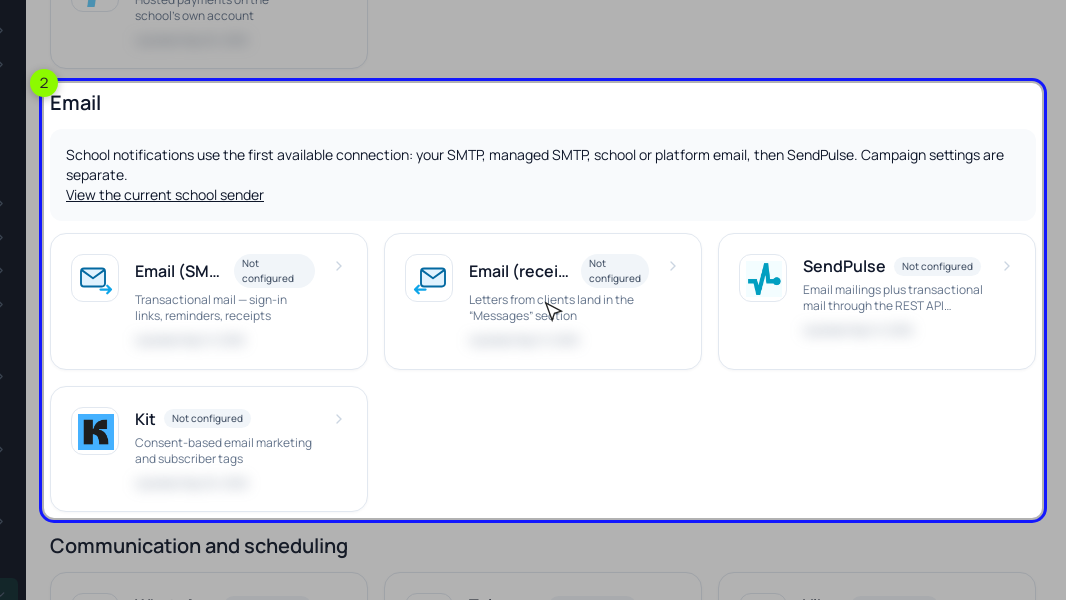
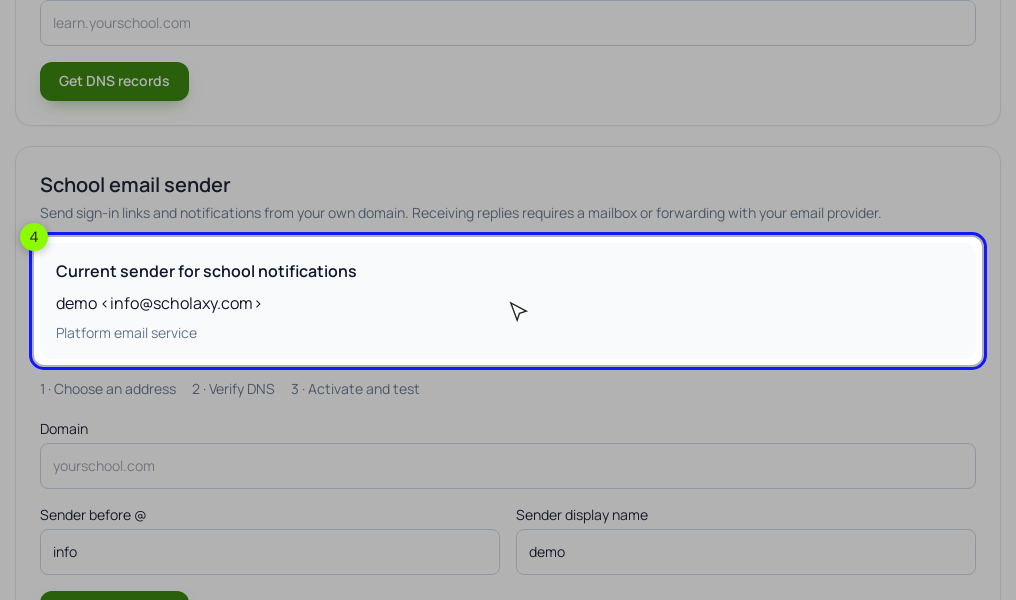
Step 2. Your domain. In "Admin panel" → "System settings" → "Domain and email", fill in the "School email sender" block, click "Get DNS records", add the records at your DNS provider and click "Check DNS". If your domain has no DMARC record, the table offers v=DMARC1; p=none;. Then "Activate" and "Send a test to my email". This sender carries sign-in links and school notifications, not broadcasts, so set up your domain on the SendPulse or SMTP side too, by that provider's instructions. Put a "Support email" in "Email branding" so replies reach you.
Step 3. The form. In "Website" → "Widgets" → "Edit form", tick "Required" on Email (after-submit actions run only for leads with an email) and write the consent text; "The consent checkbox is mandatory" is on by default. On "After submitting", pick a "Care calendar" group in "Add to the groups" and the welcome process in "Start the processes when the form is submitted".
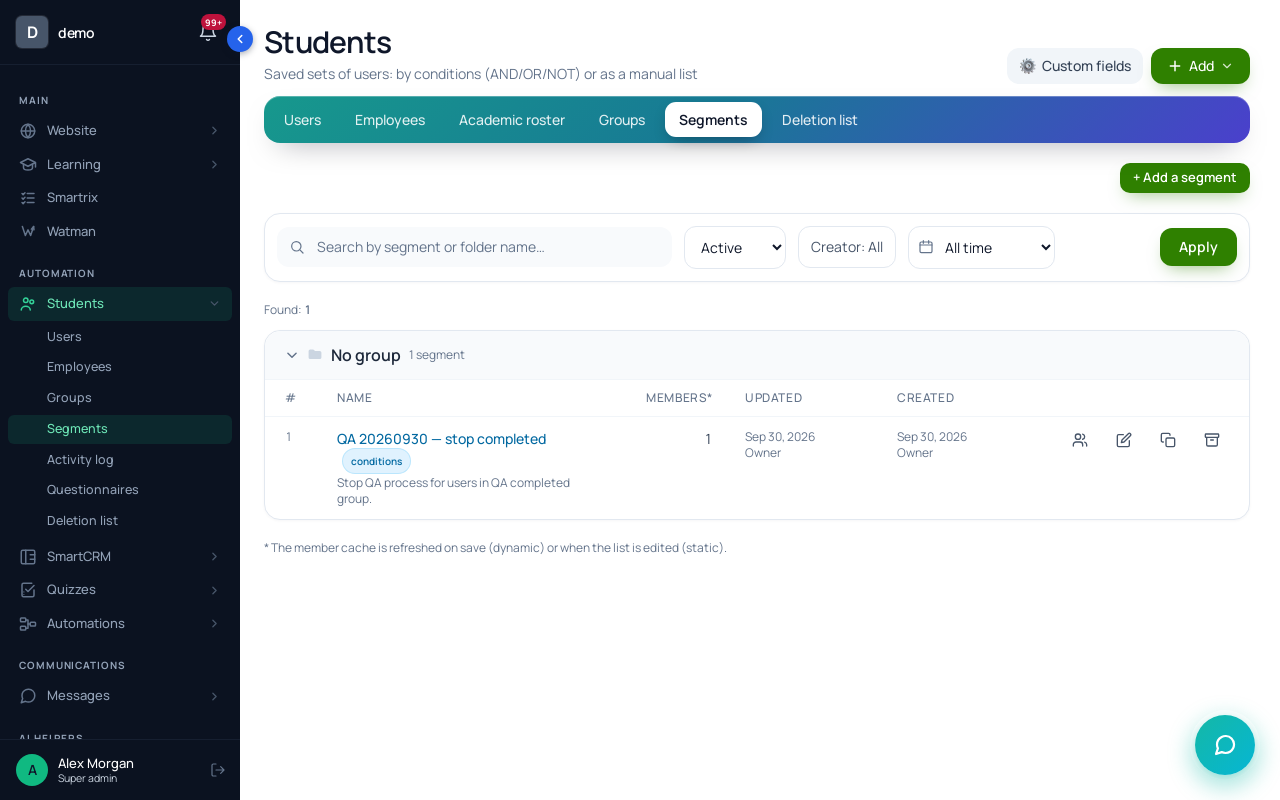
Step 4. Two segments. In "Students" → "Segments", "+ Add a segment" → "Dynamic" → "Create and open". "Bought Small Trees": "Training access" with the "open now" option and the course, then "Save and recalculate". "Newsletter": "In a group" → a "Newsletter" group. More in email segmentation for online schools.
Step 5. The process. "Processes" → "Create new" → "By LMS users". On "General", set "The launch trigger" to "Disabled" (the form starts it even while inactive), "The limit of entries per client" to 1, and "A stop condition by segment" to "Bought Small Trees": a buyer leaves the run at whatever block they're on. On the "Process" tab, add with "+ Add a block":
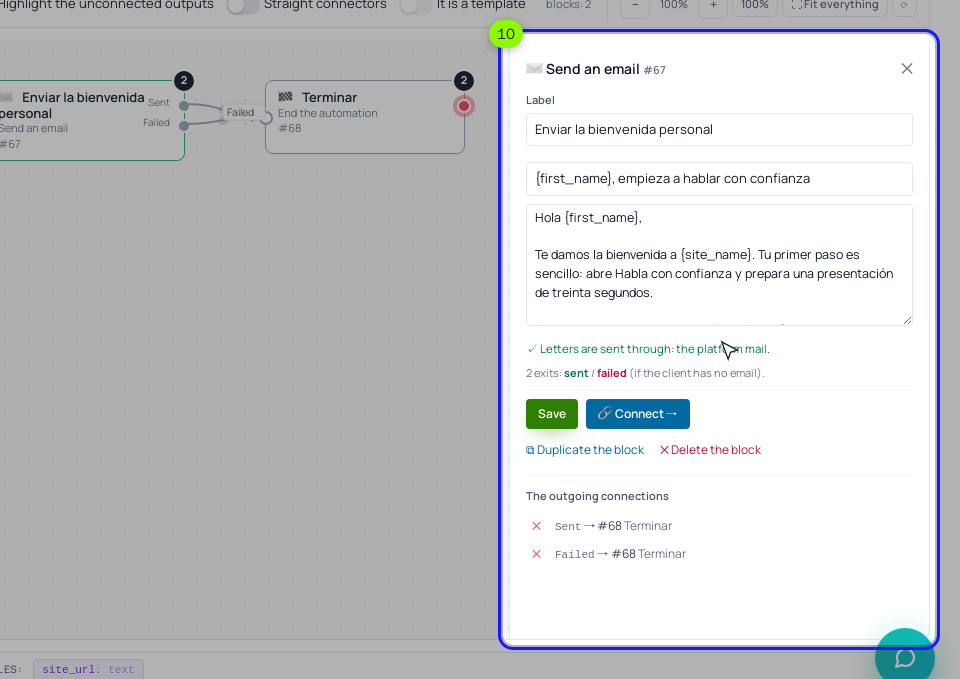
- "Send an email" (the calendar), "Delay" 2 days, "Send an email" (watering check), "Delay" 2 days, "Send an email" (free lesson), "Delay" 3 days, "Send an email" (offer).
- "Wait for condition": "Training access", "open now", the course, timeout 3 days. Default output: "End the process".
- Timeout output: "Send an email" (questions), "Operation" → "Add to a group" → "Newsletter", "End the process".
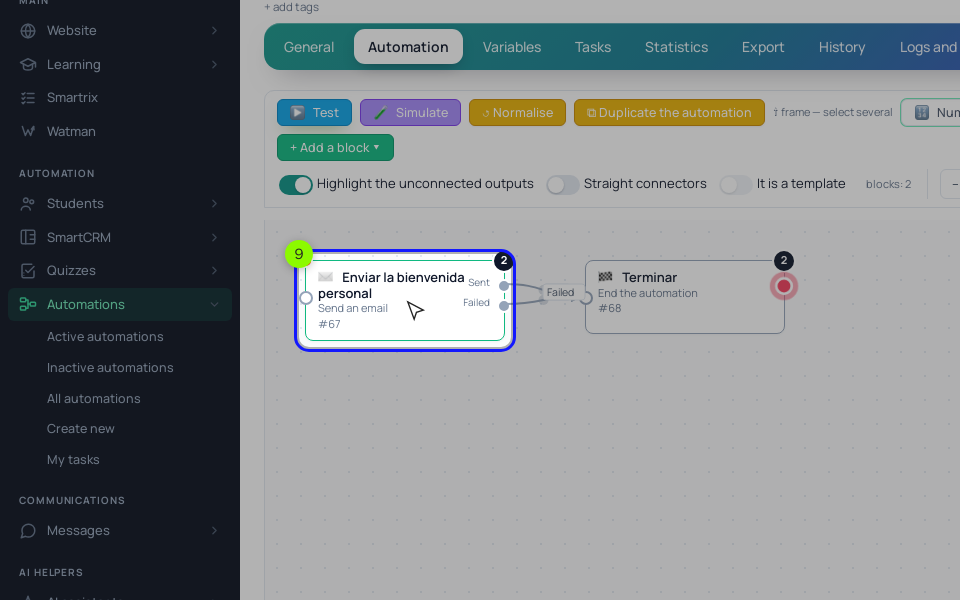
"Send an email" skips anyone who unsubscribed and adds an unsubscribe link. Chain emails from the "Run a broadcast" block don't respect unsubscribes yet, so keep the series in "Send an email" blocks. Click "🧪 Simulate", then "▶ Test" with your own email (test emails really go out), then "▶ Activate". Buyers leave early and never reach "Add to a group", so put the same block at the end of your onboarding process for students.
Step 6. The newsletter. "New broadcast" → "Email address" → "Visual", with "Letter subject" and "Preheader". "Audience" → "By segment" → "Newsletter", check "About N people will receive it", "Save the draft", "Test to email", "Schedule". Each broadcast email ends with an "unsubscribe in one click" link; people who use it get no broadcasts on any channel, while sign-in, order and password emails keep coming. Broadcasts don't read the "Subscription" field on the person's card; only the link counts.
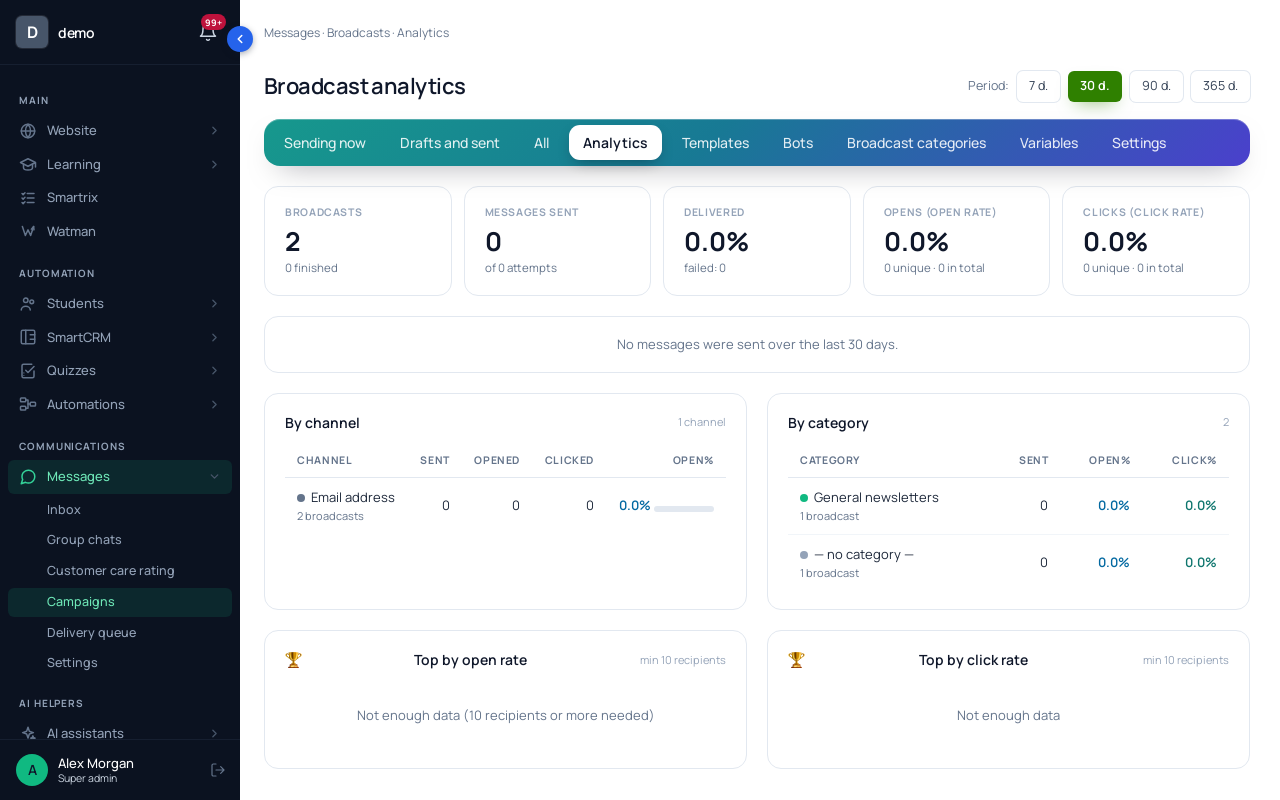
Step 7. Measure. The "Analytics" tab shows sent, delivered, opens and clicks for 7 to 365 days, and each broadcast card lists "Top links in the letter". For the welcome series, the process "Statistics" tab has "The funnel by steps".
Can I bring my list over from another email tool?
Yes. In the students section, "Import students" takes a UTF-8 CSV or XLSX file of up to 500 people with the columns email and full_name (phone is optional) and can put everyone new into a group. Addresses already in the school are skipped, and nobody gets an email at import. The file doesn't carry consent, though: import only people who agreed to hear from you, and if the list is old, send the first broadcast as a short "still want these?" note so the unsubscribe link does its job early.
Setup order for the first two weeks
- Connect SendPulse or your SMTP and send yourself a test broadcast.
- Connect your domain as the school sender, with DMARC, and set a support email.
- Rewrite the form: Email required, consent text, what you'll send and how often.
- Create the "Bought" and "Newsletter" segments.
- Write the five welcome emails; email three is a real lesson.
- Build the process with the stop segment, simulate it, test it on your own address.
- Unsubscribe from a test email and check what still arrives.
- Schedule the first Thursday newsletter to the "Newsletter" segment.
- After a month, compare purchases per sequence and unsubscribes per email.